

Design techniques
The jet that stops where the flight is: SVG motion in a Power BI measure
Make a jet fly along its route and stop at the share of the flight already flown, with SVG animateMotion written by a DAX measure, in a native card.
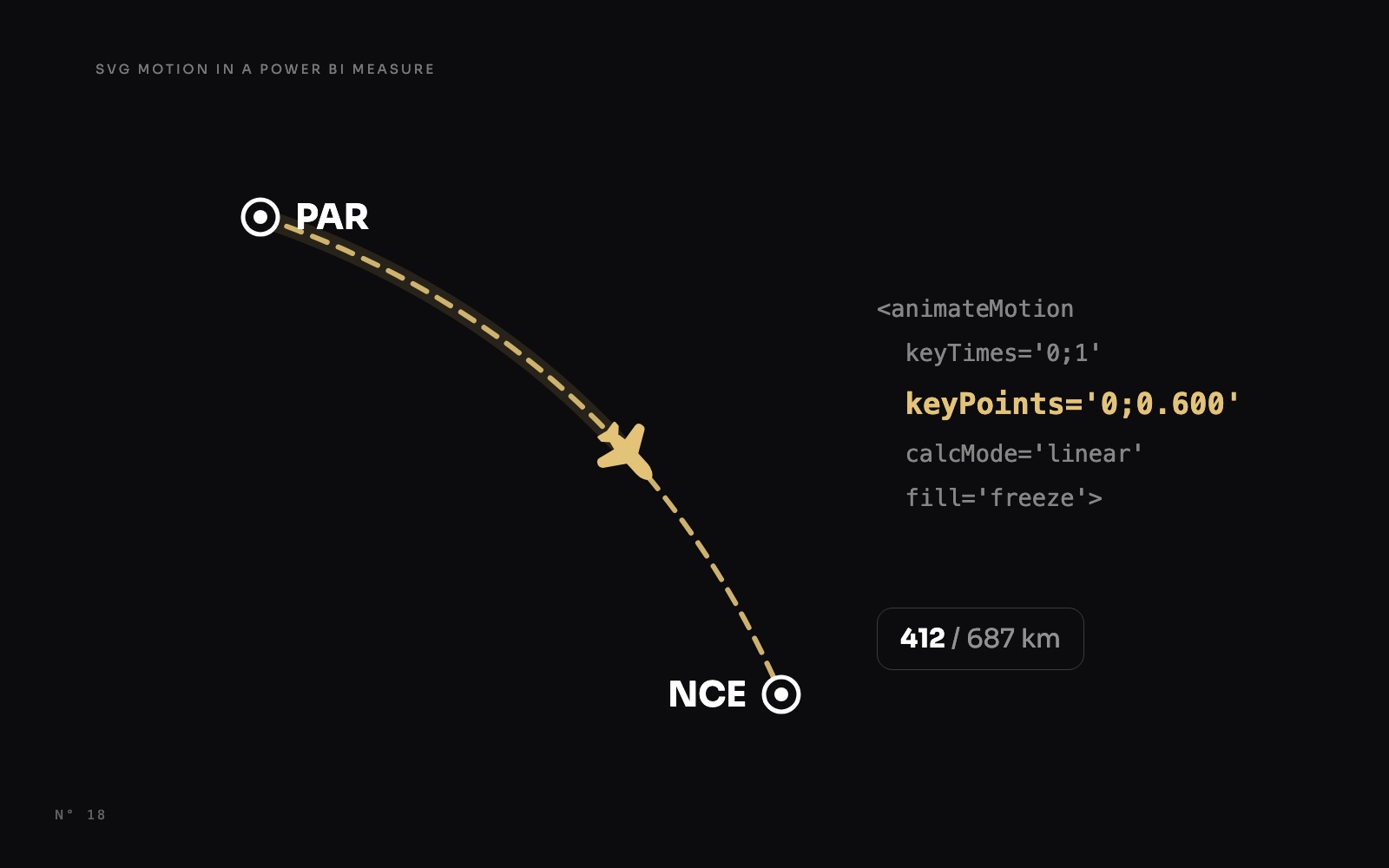
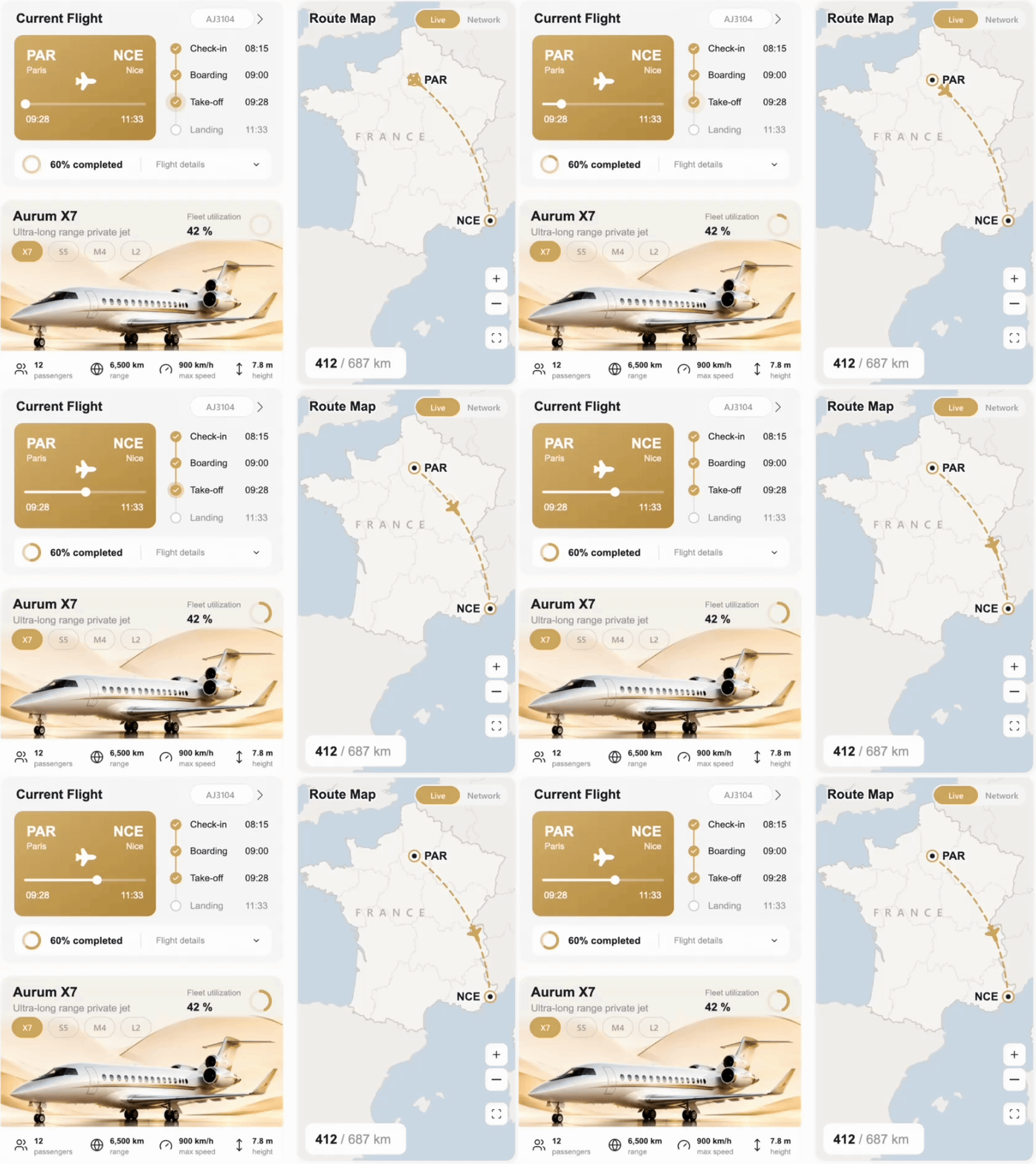
Open Aurum Jet, a free Power BI report, and look at the route map on the right of the Dashboard. A gold jet takes off from Paris, follows a dashed arc towards Nice, and stops a little past halfway. That is where the flight is at this moment: 60 % of the way, 412 km out of 687.
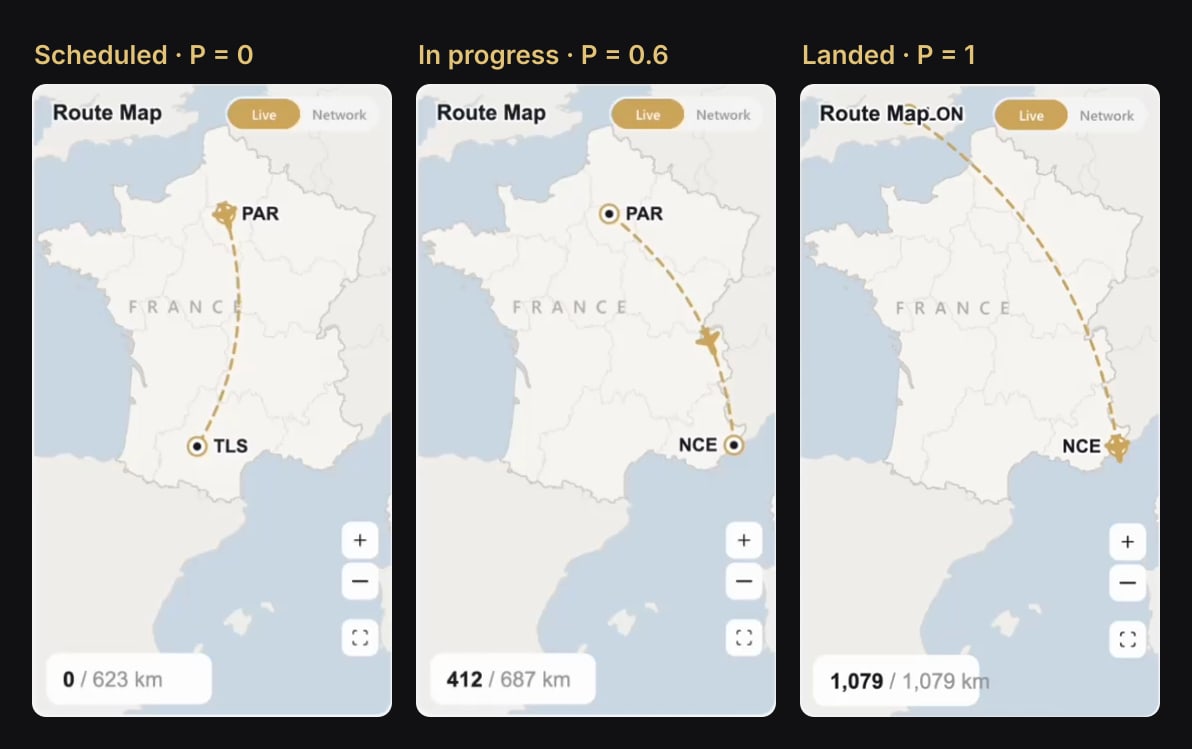
Pick a flight that has landed, and the jet flies all the way to its destination. Pick one that hasn't left yet, and it stays on the ground.
There is no custom visual behind it, and no JavaScript. The map is an image, the jet is part of an SVG returned by a DAX measure, and the motion comes from an SVG element that few Power BI reports use: <animateMotion>. This article shows how the measure tells the animation where to stop, and how to build the same thing in Power BI Desktop.
Why a map visual won't do it
Power BI's map visuals place points and shapes on a map. They don't move a marker along a route, and certainly not to a position computed from the data. The scatter chart's Play axis does animate, but it steps through the values of a column, one frame per value, and someone has to press play.
The report needs something simpler: one motion, played when the card appears, that ends at a value. SVG can describe exactly that, and a measure can write the SVG.
The idea: the measure writes where the motion ends
<animateMotion> moves an element along a path. Two attributes decide how far it goes:
keyTimes='0;1'lists two moments: the start and the end of the animation.keyPoints='0;0.600'says where the element is at each of those moments, as a share of the path's length: at the start of the path, then at 60 % of it.
So the jet travels from the origin to 60 % of the route in the animation's duration, and fill='freeze' keeps it there. The measure only has to write the second number, the share of the flight already flown. In the rest of this article, that number is P.
Step 1: P, the share of the flight already flown
P compares the report's "now" with the take-off and landing times of the flight on display:
Current progress =
VAR _t = [Reference time]
VAR _id = [Current flight ID]
VAR _dep = CALCULATE ( MAX ( FactFlight[TakeOff] ), REMOVEFILTERS ( FactFlight ), FactFlight[FlightID] = _id )
VAR _arr = CALCULATE ( MAX ( FactFlight[Landing] ), REMOVEFILTERS ( FactFlight ), FactFlight[FlightID] = _id )
RETURN IF ( NOT ISBLANK ( _dep ), MIN ( MAX ( DIVIDE ( _t - _dep, _arr - _dep ), 0 ), 1 ) )
The MIN ( MAX ( …, 0 ), 1 ) matters. keyPoints only accepts values from 0 to 1, so a scheduled flight must give 0 and a landed one 1, never -0.4 or 1.7.
[Current flight ID] is the flight chosen in the flight picker, or the flight in progress when nothing is chosen. [Reference time] is fixed at 15 October 2026, 10:43, so the demo never drifts. A live report would use the current time instead. Keep in mind that NOW () returns UTC in the Power BI Service: if your take-off times are local, add the offset to UTCNOW ().
Step 2: the route, in the card's own coordinates
The map under the card is a picture of France drawn in the simplest projection: x follows the longitude and y the latitude, in straight lines, between known bounds (5° W to 8.9° E, 37.4° N to 52° N). The SVG on top uses the same bounds on a 355 × 620 canvas, the shape of the card. Turning an airport into a point is two lines of DAX:
VAR _x1 = ( ( _olon - ( -5.0 ) ) / 13.9000 * 355 )
VAR _y1 = ( ( 52.0 - _olat ) / 14.6000 * 620 )
_x2 and _y2 do the same for the destination. The route is then a quadratic curve, M x1,y1 Q cx,cy x2,y2. Its control point sits at the middle of the two airports, pushed sideways by 22 % of the distance between them:
VAR _cx = ( _x1 + _x2 ) / 2 + ( _y2 - _y1 ) * 0.22
VAR _cy = ( _y1 + _y2 ) / 2 - ( _x2 - _x1 ) * 0.22
( _y2 - _y1, -( _x2 - _x1 ) ) is the line between the two airports turned by a quarter turn. So the arc always bows to the same side of its direction, and a longer route gets a deeper bow.
The measure draws that path once, dashed, and gives it an id:
<path id='r' d='M…' fill='none' stroke='#C89C50' stroke-width='3' stroke-dasharray='9 7' stroke-linecap='round'/>The id is what keeps everything aligned. The jet doesn't follow a copy of the route computed a second time: it follows this exact path.
Step 3: the jet
The icon is Lucide's plane, 24 × 24, with its nose pointing to the top right. Three wrappers prepare it, then <animateMotion> moves it (formatted, the icon's path trimmed):
<g>
  <g transform='scale(1.25)'>
    <g transform='translate(-12 -12) scale(1) rotate(45 12 12)' fill='#C89C50' stroke='#C89C50' stroke-width='1.2'>
      <path d='M17.8 19.2 16 11l3.5-3.5…'/>
    </g>
  </g>
  <animateMotion dur='2.4s' fill='freeze' rotate='auto' calcMode='linear'
                 keyTimes='0;1' keyPoints='0;0.600'>
    <mpath href='#r'/>
  </animateMotion>
</g>
Read it from the inside out:
translate(-12 -12)puts the centre of the icon on the point (0, 0).<animateMotion>moves that point along the path, so the jet travels centred on the route, instead of hanging off it by its top left corner.rotate(45 12 12)turns the nose from the top right to the right.rotate='auto'then turns the whole group to follow the direction of the path, and for SVG, "pointing along the path" means pointing to +x. An icon that points right flies nose first.scale(1.25)is only the size.<mpath href='#r'/>points at the route drawn in Step 2.
In the measure, only one piece of all that is DAX:
"… keyTimes='0;1' keyPoints='0;" & FORMAT ( _p, "0.000", "en-US" ) & "'><mpath href='#r'/></animateMotion></g>"The same P drives the whole card
The Current Flight card, next to the map, reads the same P three times: a progress bar, a dot at its end and a ring.
<line x1='40' y1='170' x2='40' y2='170' stroke='#FFFFFF' stroke-width='4' stroke-linecap='round'>
  <animate attributeName='x2' from='40' to='155.2' dur='1.6s' fill='freeze'/>
</line>
<circle cx='40' cy='170' r='7.5' fill='#FFFFFF'>
  <animate attributeName='cx' from='40' to='155.2' dur='1.6s' fill='freeze'/>
</circle>
<circle cx='50' cy='268' r='13' fill='none' stroke='#C89C50' stroke-width='4.5' stroke-linecap='round'
        transform='rotate(-90 50 268)' stroke-dasharray='81.68' stroke-dashoffset='81.68'>
  <animate attributeName='stroke-dashoffset' from='81.68' to='32.67' dur='1.6s' fill='freeze'/>
</circle>
The measure writes the three to values: 40 + 192 * _p for the bar and its dot (155.2 at 60 %), and _anneau * ( 1 - _p ) for the ring, where _anneau = 2 * PI () * 13 is its circumference (81.68). The ring starts fully hidden by its own dash offset and uncovers 60 % of itself.
The timeline on the right of the card adds one last effect: the step in progress pulses. A step is done when its time is past, and the one that pulses is done while the next one isn't:
IF ( _takeoff && NOT _landing, "<circle class='h' cx='282' cy='167' r='9' fill='#C89C50'/>" )That extra circle sits under the solid one and grows into a fading halo, with CSS written in the SVG's <style>:
.h { transform-box: fill-box; transform-origin: center; animation: p 1.6s ease-out infinite }
@keyframes p { 0% { transform: scale(1); opacity: .6 } 100% { transform: scale(2.4); opacity: 0 } }
transform-box: fill-box is the line people forget. Without it, an SVG element scales from the top left corner of the drawing, and the halo slides away instead of growing in place. The % of the keyframes is also why the measure's last line encodes % before #, as explained in SVG measures in Power BI cards.
When it plays again
An SVG animation plays when its image is drawn. In Power BI, that happens when the page opens, and every time the measure returns a different SVG. In the report:
- Pick another flight, and the route, the jet and the card play again and end at the new P.
- Switch between Light and Dark. Every colour changes, so every drawing is new, and they all play again.
- Switch the map to Network and back to Live, and the jet takes off again.
- Click an aircraft chip. The fleet card changes, but the map doesn't read the chips: its SVG is the same, and the jet stays where it is.
So the animation follows the text of the measure, not the click. A slicer that doesn't change the drawing doesn't replay it.
Build it in Power BI Desktop
- The map image. Export or draw a map of your area with straight longitude and latitude axes, and write down its four bounds. Add it as an Image visual. A Power BI map without Azure Maps explains why the picture's projection must match the formula, and how to get one without code.
- The progress measure. Write P as in Step 1, with the times of your own model, clamped to 0 and 1.
- The SVG measure. Start the SVG with a
viewBoxthe shape of the card (355 × 620 here) andpreserveAspectRatio='none'. Project the two airports, write the route with itsid, then the jet group with its<animateMotion>. End with the usual encoding line,SUBSTITUTE ( SUBSTITUTE ( _svg, "%", "%25" ), "#", "%23" ): the#ofhref='#r'has to be encoded like the#of the colours. - Its category. Select the measure, and in Measure tools, set Data category to Image URL.
- The card. Add a new card visual exactly over the map image, with its background off, and put the measure in the card's image, as in the step by step of our SVG cards article. Turn the value and the label off, and leave the value area no room at all: in the report file, a
calloutSizeof 10 shrank our drawing to about 90 % of the card, and at 1 a thin strip was still kept. At 0, the image fills the card. - Test it. Change the flight in the picker. The jet should take off again and stop at the new P.
The traps
- Say
calcMode='linear'. The default for<animateMotion>ispaced, and in paced mode the SVG specification tells the browser to ignorekeyTimes, the list thatkeyPointsis paired with. Browsers have not always agreed on what follows. Linear mode leaves no doubt: at the start, point 0; at the end, point P. fill='freeze', or the jet jumps. At the end of an animation, an element withoutfreezegoes back to its own position. For the jet, that is (0, 0): the top left corner of the card.- Decimals in en-US.
FORMAT ( _p, "0.000", "en-US" ), never the model's culture. On a French or German model, a plainFORMATwrites0,600, which is not a number for SVG, so the attribute is rejected. - One
idper drawing is enough. Each card image is its own SVG document, so the route'sid='r'can't clash with anid='r'in another card. Two routes in the same SVG need two ids. - The speed depends on P. The jet always takes 2.4 seconds, whatever the distance it covers: at P = 0.1 it crawls, at P = 1 it races. For a steady speed, compute
durfrom P too, with a floor such asMAX ( 2.4 * _p, 0.2 ), because 0 is not a valid duration. - Text doesn't measure itself. The distance pill under the map is 162 units wide. "412 / 687 km" fits, but "1,079 / 1,079 km", on the landed flight above, runs past its edge. Size such pills from
LEN ()of their text. - A screenshot freezes one instant. Tools that render the page to an image can catch the jet halfway, or before it starts. To check the motion, record the screen.
Try it
- Aurum Jet: download the report, open the Dashboard, and read
Route map (SVG),Current flight (SVG)andCurrent progressin the_Measurestable. The report itself is presented in Aurum Jet, a free Power BI report with no custom visuals. - The same card in Network mode, with fifty routes at once: a route map drawn by a DAX measure.
- More SVG animations on the same principle, with a gauge that fills segment by segment: staggered SVG animations.
FAQ
Does it work in the Power BI Service?
Yes. The report is published, and the recording at the top of this page comes from the Service.
Do I need a custom visual?
No. The map is an Image visual, and the route and the jet are a new card visual showing a measure. There is nothing to install or approve.
Does it work in a table?
Yes. We tested <animateMotion> in the image of a card and in the image column of a table, and both play. In a table, each row gets its own animation.
Can users click the route or the jet?
No. The drawing is an image. The flight picker and the Live and Network switch are native slicers placed over it.
Will it slow the report down?
The measure looks up two airports and writes a few hundred characters of text. The motion itself is played by the browser, not computed by the model.