

Free reports
Aurum Jet: a free Power BI report with no custom visuals
Download Aurum Jet, a free Power BI report built with an AI agent: Light and Dark mode, native SVG animations, photos that follow the data, zero custom visuals.
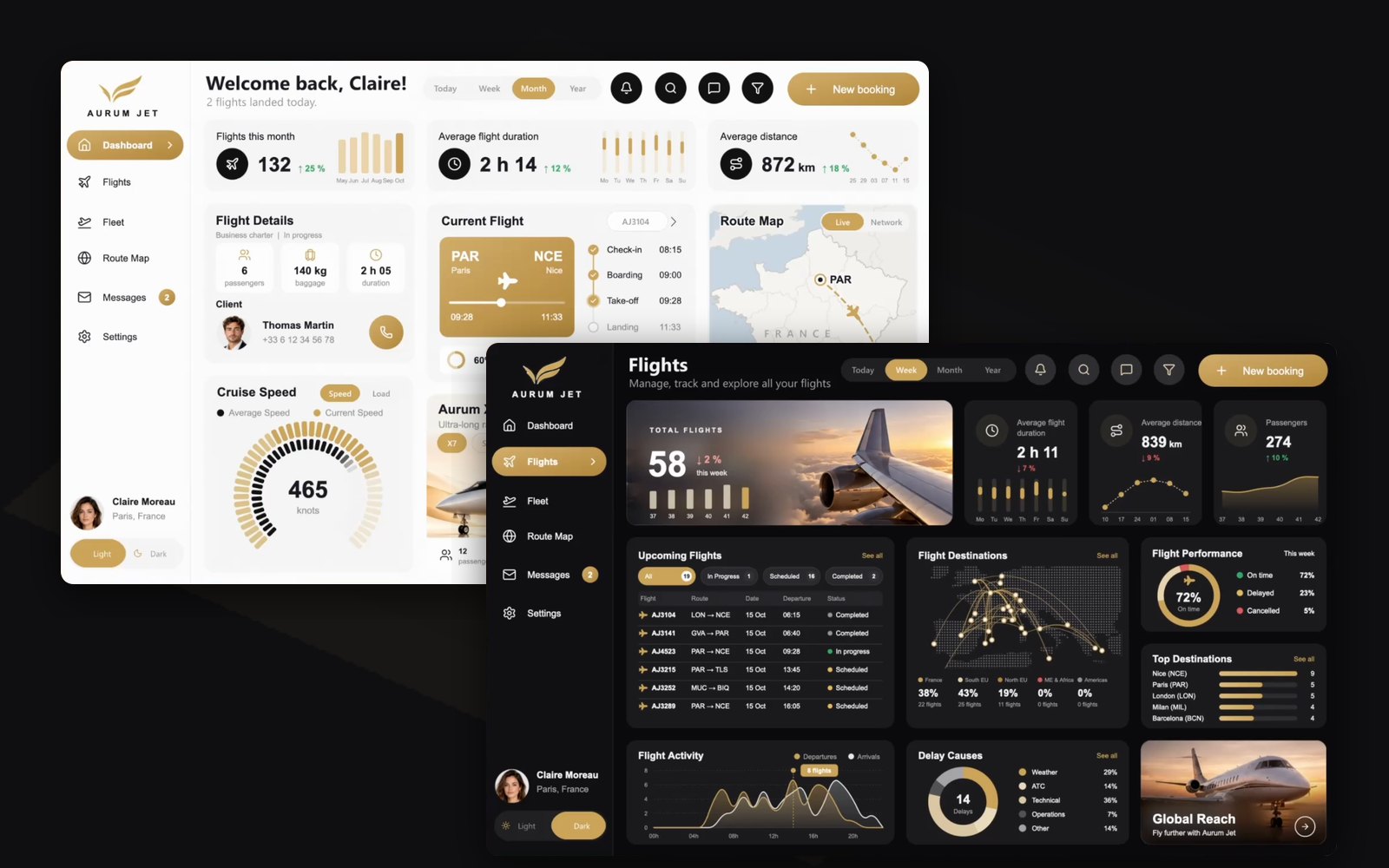
Most animated Power BI reports you see online lean on custom visuals: a React visual, the HTML Content visual, a .pbiviz file that an admin has to approve. Aurum Jet is the other kind. Bars grow, gauges fill, a jet flies along its route, the whole report switches between Light and Dark, and every photo follows the data. All of it with native visuals and DAX, live in the Power BI Service.
We built it with an AI agent, Claude Code, working through the Power BI Desktop Bridge, from image mockups. It took two days, and the result is free to download.
Here is what it is, what "no custom visuals" means in practice, how to open it, and the techniques inside.
What Aurum Jet is
Aurum Jet is a fictional private jet operator (aurum is Latin for gold). The brand, the clients and every number are made up. The data was generated, then calibrated so that each figure matches the mockups the report was designed from.
- 2 report pages: Dashboard and Flights.
- A filter drawer and a New booking dialog that open over the report.
- Light and Dark mode, switched with one click.
- 119 visuals, 0 custom visuals. Not one of them is a chart visual either.
- A semantic model of 17 tables and 168 measures.
- 4,339 flights from January 2025 to October 2026, 350 clients, 14 jets of 4 models.
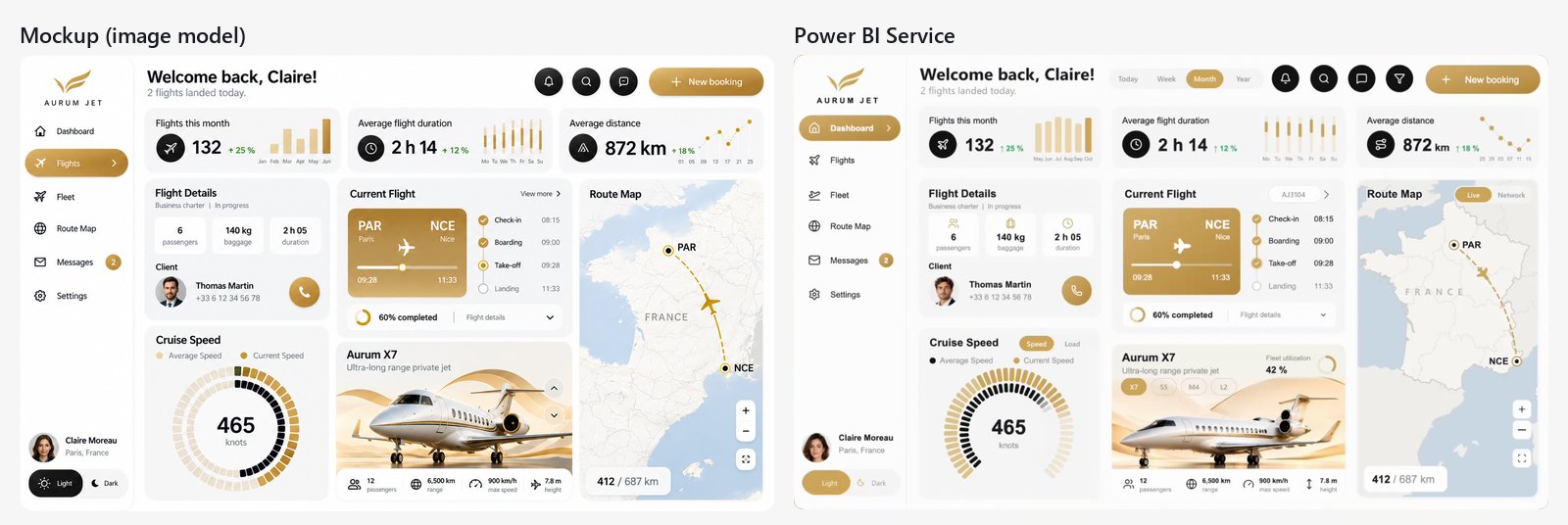
What "no custom visuals" means
The 119 visuals are 59 cards, 29 slicers, 22 buttons and 9 images. The charts you see are not chart visuals: each one is an SVG image returned by a DAX measure and shown in a native card. The animations are plain SVG animations inside those images.
That has three consequences:
- Nothing to install or approve. No
.pbiviz, no tenant admin setting, no certification to wait for. The report opens wherever Power BI opens. - Everything follows the model. The drawings react to the period, the filters and the theme like any other visual, because they are measures.
- It works in the Service. We published it: the animations, the photos, the theme switch and the drawer behave as in Desktop.
And one honest limit: a drawing is an image. You cannot hover a bar for a tooltip or click a route to filter the page. The interactivity comes from native slicers and buttons placed on top of the drawings: the period pills, the flight picker, the aircraft chips, the mode toggles.
What's in the zip
The zip weighs 2.3 MB. It holds the project as Power BI Desktop opens it, in the PBIP format, minus the caches.
| Path | What it is |
|---|---|
AurumJet.pbip | The file you open in Power BI Desktop |
AurumJet.Report/ | The report in PBIR format: 5 pages, one JSON file per visual, the theme, the images and the bookmarks |
AurumJet.SemanticModel/ | The model in TMDL format: 17 tables, 5 relationships, 168 measures |
data/ | 7 Parquet files: flights, cancellations, clients, jets, models, airports, dates |
images/ | The images of the report as separate files: the jet photos, the client portraits, the Flights page photos, the route map and the logo |
LICENSES/ | lucide.txt, the licence of the icons |
README.md | How to open it, in English and in French |
The 5 pages are the two report pages, the drawer in its Light and Dark versions, and a hidden check page named Recette with the key numbers.
How to open it, step by step
You need Power BI Desktop for Windows, a 2026 release. On a Mac, run Desktop in a Windows virtual machine.
- Download the zip from the Aurum Jet page or from the GitHub release.
- Unzip it at the root of
C:\. The zip holds anAurumJetfolder, so the data lands inC:\AurumJet\data\, the path the model expects. - Open
AurumJet.pbipin Power BI Desktop. - Unzipped somewhere else? Go to Transform data > Edit parameters and set
DossierDonneesto the full path of thedatafolder, ending with a backslash, for exampleD:\Projects\AurumJet\data\. - Click Refresh. The data is small, it loads in seconds.
Three things to know once it is open:
- The report opens on the Dashboard, in Light mode, with the period set to Month.
- The report's "now" is fixed at 15 October 2026, 10:43. "Today", "this month" and the flight in progress are computed from that moment, so the numbers never drift.
- In Desktop, hold Ctrl and click to use a button: the menu, the funnel, New booking. Once published, a plain click works.
A tour of the report
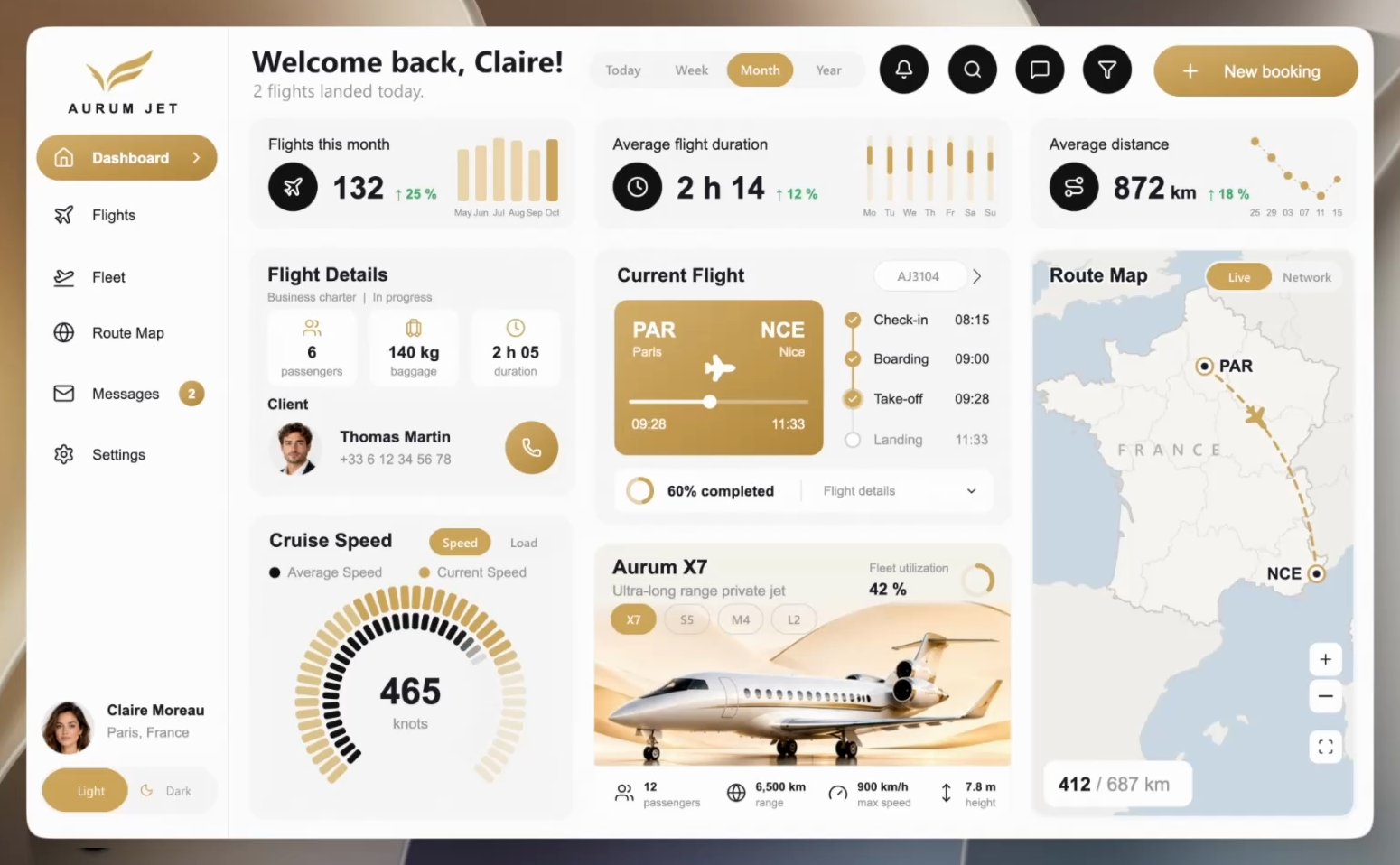
Dashboard
Three KPIs (flights, average duration, average distance) with their change and a small chart each. Below: the details of the selected flight with the client's portrait, the current flight with its timeline and progress, a gauge that switches between cruise speed and load factor, the fleet card, and a route map of France. The period pills drive the KPIs and the network view of the map. The flight picker drives the flight details, the timeline and the map. The aircraft chips drive the fleet card only.
Flights
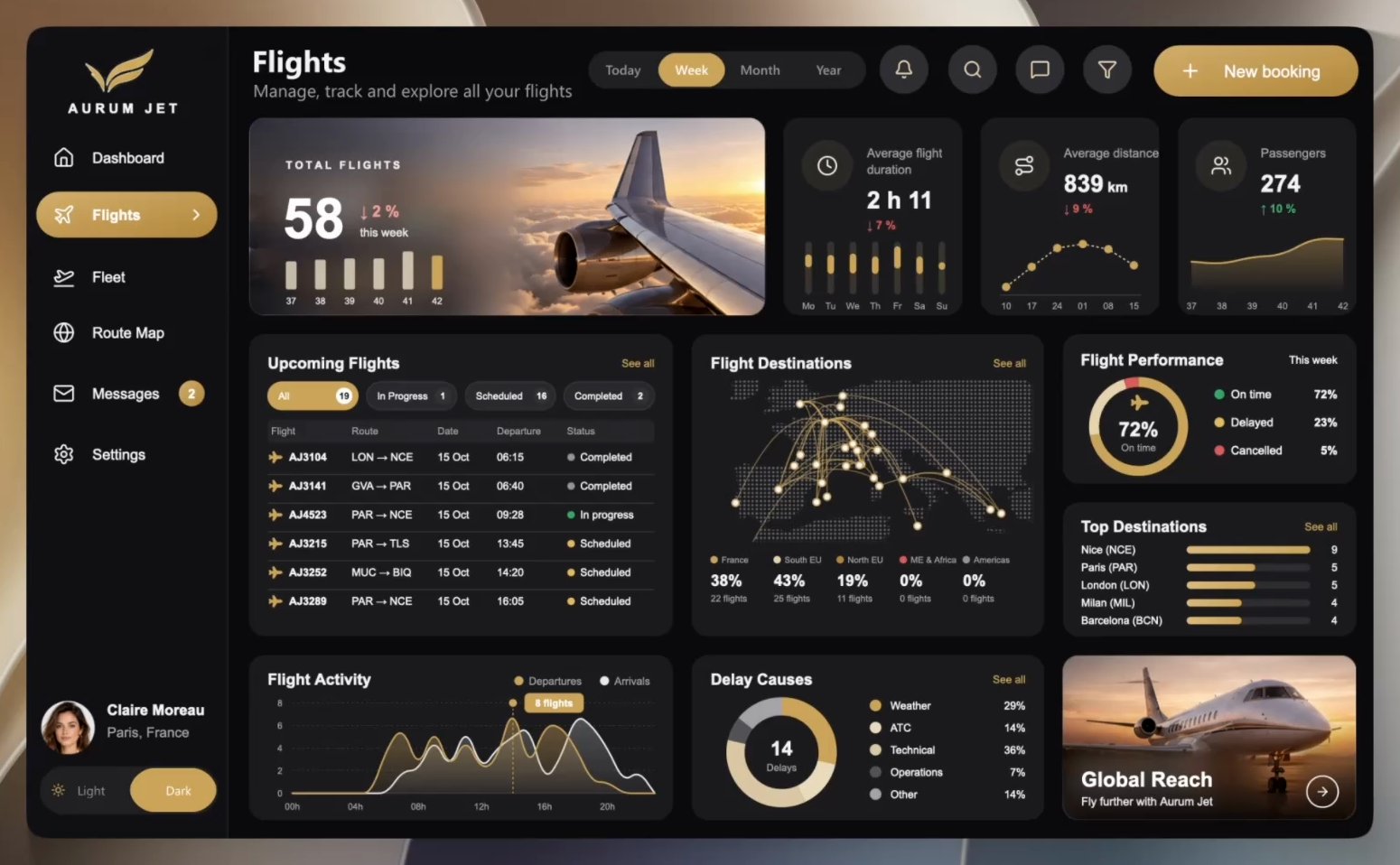
A large photo carries the total flights and the bars of the period. Three KPIs follow (duration, distance, passengers). Below: the upcoming flights with status tabs, the destinations map, the on-time performance, the top destinations, the activity by hour and the delay causes.
Light and Dark
One slicer in the side menu switches the theme. Every colour of every drawing changes, and so do the photos: each jet has a Light and a Dark version.

The filter drawer and the New booking dialog
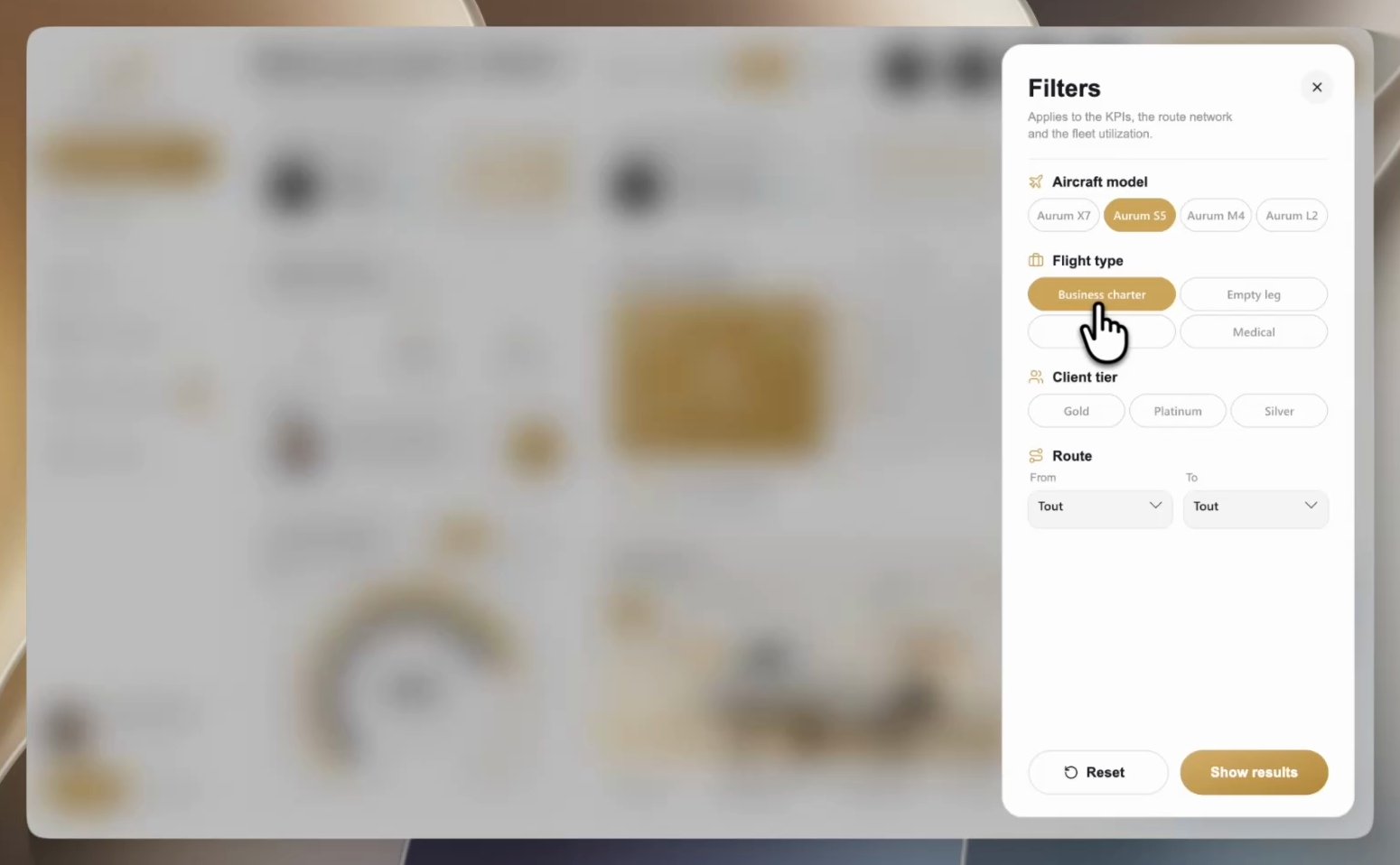
The funnel opens a drawer with five filters: aircraft model, flight type, client tier, origin and destination. They apply to both pages, and a badge on the funnel counts the active ones.
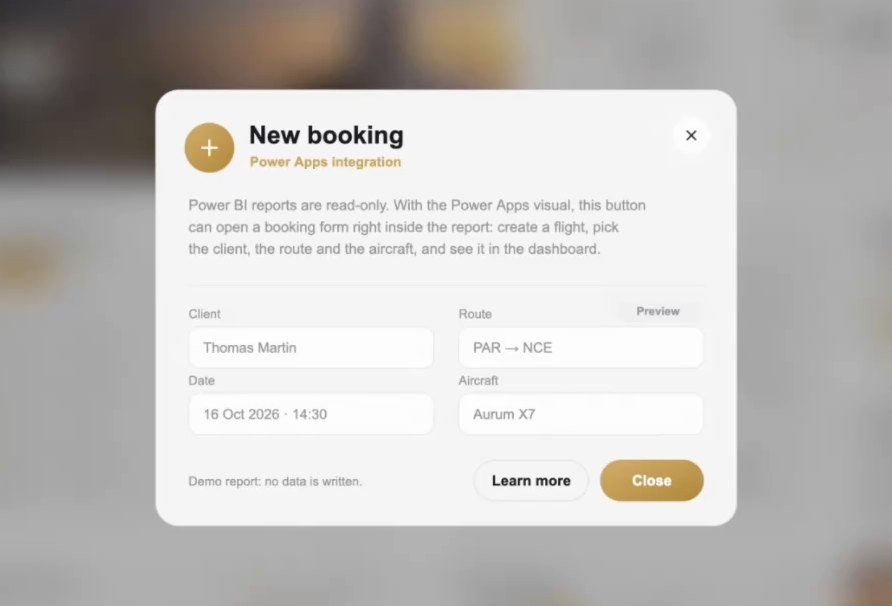
New booking opens a dialog. A Power BI report is read-only, and that is the first question people ask about a booking button. The dialog answers it: with the Power Apps visual, this button could open a booking form right inside the report. Here it is a demo, and it writes no data.
Five techniques inside
Light and Dark with colour measures
Each colour is a measure that reads the theme slicer, here the card background:
Selected theme = SELECTEDVALUE ( Theme[Theme], "Light" )

Color card = IF ( [Selected theme] = "Dark", "#1B1B1E", "#F6F6F7" )
The SVG measures read these colour measures instead of fixed hex codes, so a single click restyles every drawing. The slicer itself keeps fixed colours: colours bound to measures do not apply to the states of a button slicer.
Native SVG animations
An SVG image can animate itself with <animate> and <animateMotion>. The measure writes the start and end values from the data, for example a bar that grows to its height:
<rect x='10' y='92' width='14' height='0' fill='#C89C50'>
  <animate attributeName='height' from='0' to='64.0' dur='0.6s' fill='freeze'/>
</rect>
The jet on the map uses <animateMotion> along the route, and stops at the share of the flight already flown. The animations replay each time the visual renders, after a filter or a page change. How SVG measures work in cards: SVG measures in Power BI cards.
Photos over 32,766 characters
A photo can be shown by a measure as a base64 data URI. But a single text value in a column stops at 32,766 characters, and a jet photo needs more. So the photos sit in a calculated table, split into chunks of 30,000 characters, and a measure joins them back in order:
Jet image =
VAR _m = [Shown model ID]
VAR _t = [Selected theme]
VAR _b =
    CONCATENATEX (
        FILTER ( 'Jet image', 'Jet image'[ModelID] = _m && 'Jet image'[Theme] = _t ),
        'Jet image'[Chunk], "", 'Jet image'[Part], ASC
    )
RETURN IF ( NOT ISBLANK ( _m ), "data:image/jpeg;base64," & _b )
The client portraits work the same way: each client gets a portrait that matches their first name, and keeps it.
A map that frames itself
There is no map visual on the Flights page. The land is one SVG path, filled with a dot pattern. The measure takes the airports of the main routes of the period, computes their extent, and scales the land and the arcs to fill the card. Change the period or a filter and the map zooms on the new routes. Another way to draw a map without Azure Maps: a Power BI map without Azure Maps.
A button that goes to the right page
The drawer exists twice, one hidden page per theme. It cannot carry a theme slicer of its own: its Reset button clears every slicer of the page, and the theme would reset with them. So the funnel has to open the page that matches the current theme. Its destination uses conditional formatting bound to a measure that returns the page name:
Filters page = IF ( [Selected theme] = "Dark", "Filters dark", "Filters light" )The New booking dialog uses bookmarks instead: one shows the dialog and its blurred background, one hides them, and both leave the filters untouched.
How it was built
Aurum Jet started from two images, made with an image model: the Dashboard, then the same Dashboard with its controls. From there, the AI agent wrote everything as code:
- The data, generated in Python and calibrated on the mockup: 132 flights this month, up 25 %, an average duration of 2 h 14 and a distance of 872 km. In October, 76 % of flights are on time.
- The model in TMDL, and the report in PBIR, one file per visual.
- The drawings: every card is an SVG measure.
After each change, the agent reloaded the report in Power BI Desktop through the Desktop Bridge, captured every page, compared it with the mockup and fixed what it saw. It also clicked the buttons itself to test the drawer, the dialog and the menu. The human part: the design direction, the photos, the review, and a lot of "move this up a little". The flight picker was even reworked by hand in Desktop, and the agent folded that change back into its scripts.
The loop is described in the Desktop Bridge on a Mac and the method in the AI agent method.
What you may do with it
The README sets the terms: Aurum Jet is free to open, study, adapt and reuse, including in your own work. Please don't resell it as a template. Piece by piece:
- Icons: Lucide, under the ISC License, in
LICENSES/lucide.txt. - Maps: the map of France is drawn from france-geojson, under the Etalab Open Licence 2.0, with the neighbouring countries from the World Borders Dataset (thematicmapping.org, CC BY-SA 3.0). The land of the destinations map comes from Natural Earth, in the public domain.
- Photos and portraits: all generated with AI.
- Data: the brand, the clients and every number are fictional.
Download
- The Aurum Jet page: the report in video and in screenshots, how it was built, and the download button.
- The GitHub repository: browse the files online. The zip is the asset of the latest release, and this direct link always points to it.
- Looking for a larger model? Colis Pro, our first free report, has 5 pages, 465 measures and 4 million shipments.
A designed report on your own model
Aurum Jet is a showcase, built on a fictional model. ChartCraft Forge generates a designed Power BI project in a few clicks, and its MCP server lets your agent forge one bound to your own semantic model. You take it from there.
FAQ
Do I need to install anything besides Power BI Desktop?
No. There is no custom visual in the report. Power BI Desktop for Windows, which is free, opens it as is.
Do the animations work in the Power BI Service?
Yes. We published the report and checked it in the browser: the animations, the photos, the Light and Dark switch, the drawer and the dialog all work.
Can I use it with my own data?
Not as is: the 168 measures expect the Aurum Jet tables and columns. Reuse its measures, its colour system and its techniques in your own report, or let ChartCraft's MCP server forge a designed report bound to your model.
Is it really free?
Yes. No account and no sign-up: download the zip from GitHub, then open, study, adapt and reuse it, including in your own work. Just don't resell it as a template.