

Design techniques
A gauge that fills segment by segment: staggered SVG animations in Power BI
Gauges that fill segment by segment, bars that rise one after another, lists that appear row by row: one DAX pattern gives each SVG element its own start time.
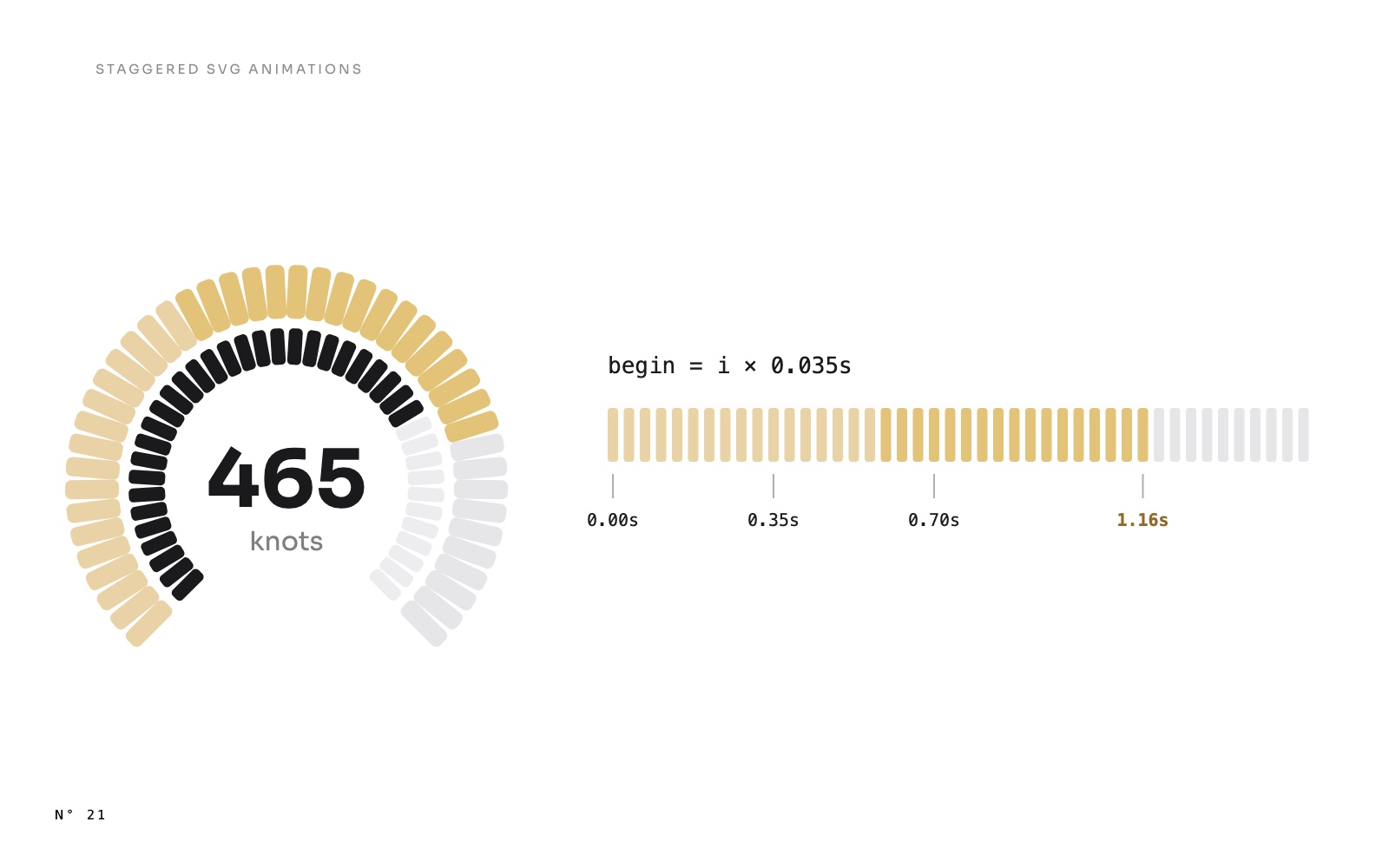
Open the Dashboard of Aurum Jet, a free Power BI report, and watch closely. Nothing appears all at once. The bars of the first KPI rise from left to right. The range bars of the second open from their middle, one day after the other. The speed gauge lights up segment by segment, pale gold first, then gold, while its inner ring follows a beat later.
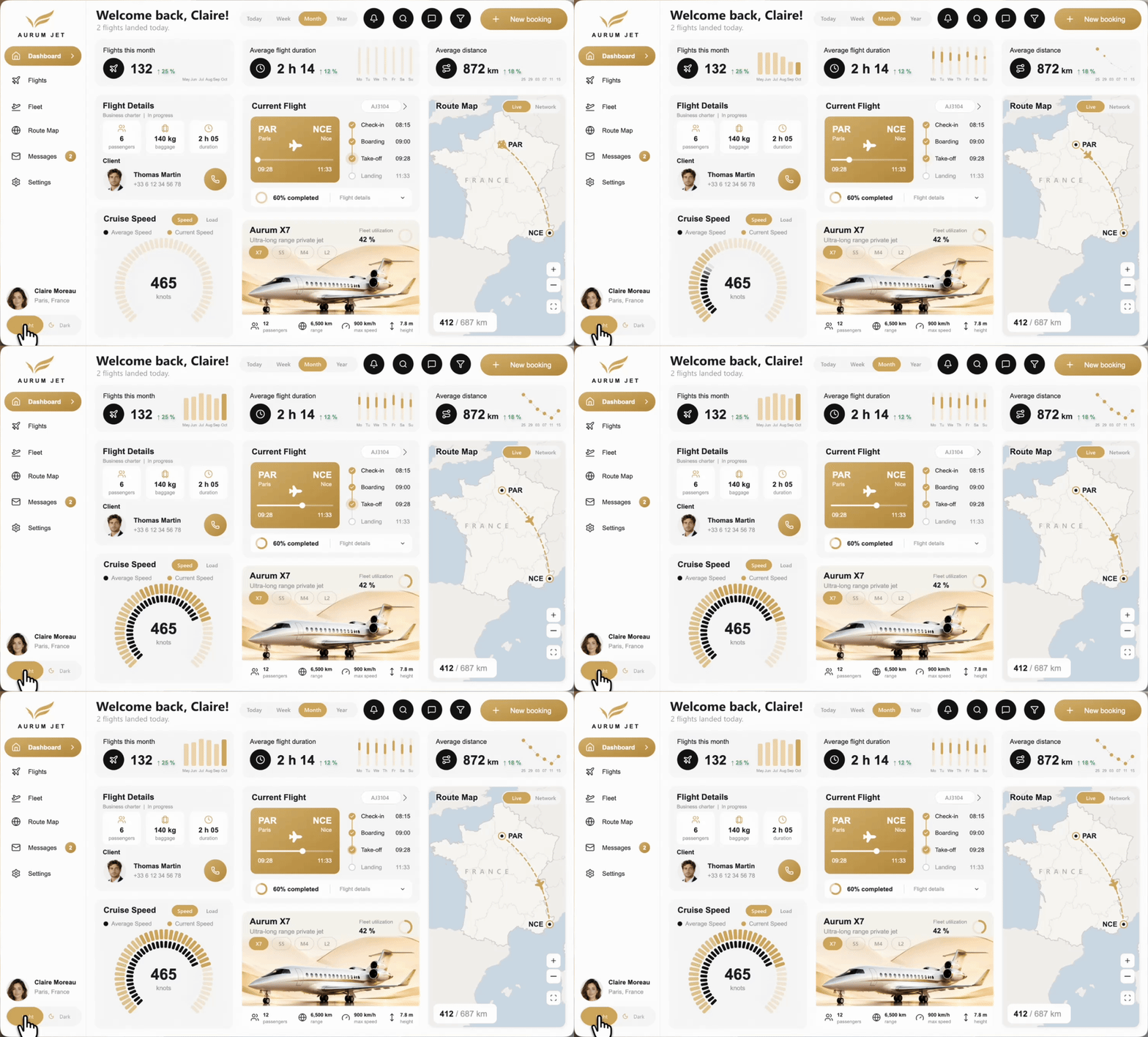
Each of those drawings is one SVG returned by a measure, and each one uses the same pattern: the measure draws a series of elements, and gives each element its own start time. This article takes the gauge apart, then shows the same pattern on bars, ranges, points, list rows and arcs.
The pattern in one sentence
CONCATENATEX writes one SVG element per row of a table, and inside it each row knows its rank. The rank sets where the element is drawn, and the same rank sets when it starts: begin = rank × step.
That's all. The rest is choosing the table, the step and what to animate.
The gauge, element by element
The Cruise Speed gauge is 44 rounded rectangles. There is only one rectangle in the code, drawn at the top of the dial, and GENERATESERIES ( 0, 43 ) turns it 44 times around the centre of the dial:
VAR _nv = ROUND ( _v / _max * 44, 0 )
VAR _ext = CONCATENATEX ( GENERATESERIES ( 0, 43 ), VAR _ang = -135 + [Value] * 270 / 43
    RETURN "<rect x='171.5' y='76' width='9' height='26' rx='3' fill='" & _c_track & "' transform='rotate(" & FORMAT ( _ang, "0.0", "en-US" ) & " 176 202)'>"
        & IF ( [Value] < _nv, "<animate attributeName='fill' to='" & IF ( [Value] < _nv * 0.5, "#D9BC82", "#C89C50" ) & "' begin='" & FORMAT ( [Value] * 0.035, "0.00", "en-US" ) & "s' dur='0.12s' fill='freeze'/>" )
        & "</rect>", "", [Value], ASC )
Line by line:
- The angle.
-135 + [Value] * 270 / 43spreads the 44 segments over 270°, from bottom left to bottom right.rotate ( angle 176 202 )turns each one around the dial's centre, so a single rectangle definition makes the whole arc. - How many light up.
_nvis the value's share of the maximum, in segments: 465 knots out of 600 givesROUND ( 34.1 ), so 34 segments. - The stagger. Segment
[Value]starts at[Value] * 0.035seconds and takes 0.12 s to turn gold. Segment 0 starts at once, segment 33 at 1.16 s. - Two golds. The first half of the lit segments get a paler gold,
#D9BC82, so the arc darkens as it climbs. - No
from. Without it, the animation starts from the segment's own colour, the track colour, which is also a colour measure. The same drawing works in Light and Dark. - Only the lit ones animate. The
IFwrites no<animate>for segments 34 to 43. They keep the track colour, and the SVG stays shorter.
The inner ring is the same code with 40 smaller segments, for the average speed, and a start that waits 0.2 s: begin = 0.2 + [Value] * 0.035. The two rings run side by side, the average one step behind.
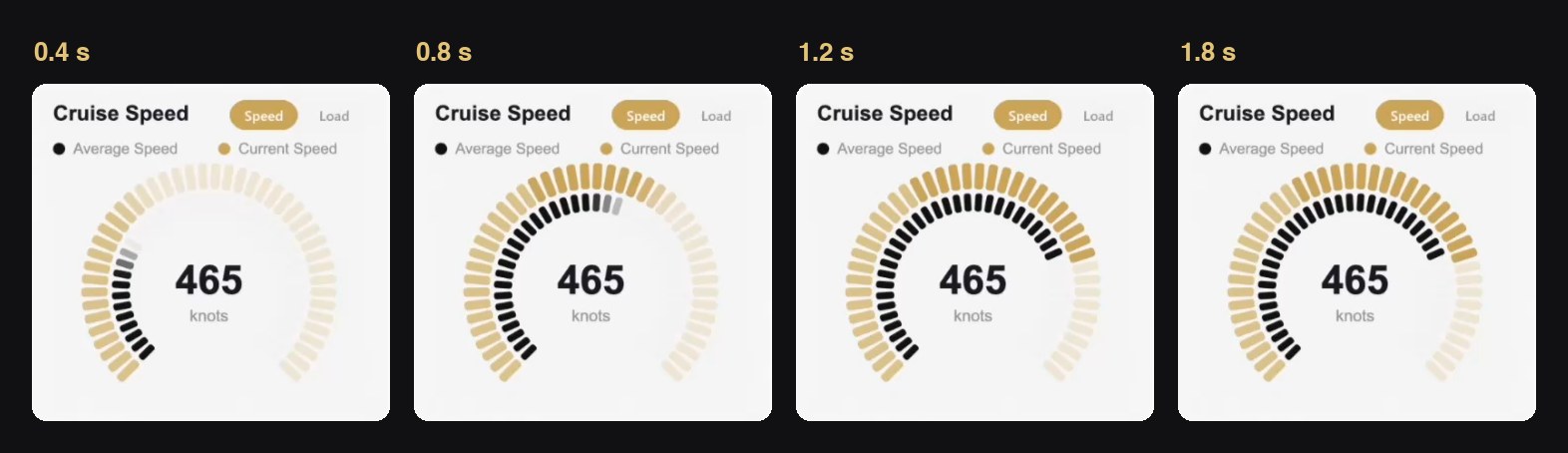
The Speed and Load switch above the gauge doesn't need a second drawing. A button slicer on a two-row table sets [Selected gauge mode], and the measure swaps the value, the average and the maximum:
VAR _load = [Selected gauge mode] = "Load"
VAR _v = IF ( _load, [Current load], [Current cruise speed] )
VAR _a = IF ( _load, [Avg load], [Avg cruise speed] )
VAR _max = IF ( _load, 1, 600 )
Click Load, the text of the measure changes, and the gauge plays again from zero to the load factor.
The same pattern, six times on two pages
| Drawing | One element per | What animates | Start |
|---|---|---|---|
| Flights per period (KPI) | bar | height from 0, y from the baseline | rank × 0.07 s, for 0.6 s |
| Flight duration (KPI) | day, a min to max bar | height from 0, y from the bar's middle | rank × 0.07 s, for 0.6 s |
| Average distance (KPI) | point | the radius r, from 0 | 0.3 + rank × 0.12 s |
| Upcoming flights (Flights) | row of the list | opacity, 0 to 1 | rank × 0.06 s |
| Performance and delay causes (Flights) | segment of the ring | stroke-dasharray, from an empty dash | rank × 0.25 s |
| Route network (Dashboard) | route | stroke-dashoffset, 1 to 0 | 0.7 × ( 1 - share ): busiest first |
The last row is the one exception to "rank × step": the arcs start by importance, not by position. It is explained in the route map article.
Bars grow upwards: animate height and y
An SVG rectangle is placed by its top left corner. Animate only its height, and the bar grows downwards, from the top. To grow it upwards from a baseline, move its top at the same time:
VAR _barres = CONCATENATEX ( _moy,
    VAR _i = [Value] - 1 VAR _h = DIVIDE ( [@v], _max ) * 70 VAR _x = 227 + _i * _pas
    RETURN "<rect x='" & FORMAT ( _x, "0.0", "en-US" ) & "' y='92' width='" & FORMAT ( _bw, "0.0", "en-US" )
        & "' height='0' rx='3' fill='" & IF ( [Value] = _n, "#C89C50", "" & _c_barlight & "" ) & "'>"
        & "<animate attributeName='height' from='0' to='" & FORMAT ( _h, "0.0", "en-US" ) & "' begin='" & FORMAT ( _i * 0.07, "0.00", "en-US" ) & "s' dur='0.6s' fill='freeze'/>"
        & "<animate attributeName='y' from='92' to='" & FORMAT ( 92 - _h, "0.0", "en-US" ) & "' begin='" & FORMAT ( _i * 0.07, "0.00", "en-US" ) & "s' dur='0.6s' fill='freeze'/></rect>"
        …
The bar starts with no height on the baseline (y='92'). Over 0.6 s, its height goes from 0 to _h while its top goes from 92 to 92 - _h: the bottom never moves. The last bar, the period in progress, is gold, the others use a paler colour measure.
The duration KPI does the same thing from the middle. Each day is a bar from the shortest flight to the longest, and both its top and its height start at the bar's midpoint, _mid = ( _y0 + _y1 ) / 2. The bar opens up and down at once, which reads as "a range" before the eye has even found the axis.
When the rank isn't free
GENERATESERIES gives the rank for free: it is [Value]. When the elements are real rows, flights for instance, the measure has to compute it. The Upcoming Flights list keeps the next six flights and numbers them by take-off time:
VAR _top = TOPN ( 6, _sel, FactFlight[TakeOff], ASC )
VAR _rang = ADDCOLUMNS ( _top, "@i", VAR _k = FactFlight[TakeOff] + FactFlight[FlightID] / 1000000 RETURN
    COUNTROWS ( FILTER ( _top, FactFlight[TakeOff] + FactFlight[FlightID] / 1000000 <= _k ) ) )
For each flight, the rank is the number of flights that leave at the same time or earlier. Two flights can leave at the same minute, so the key adds a millionth of the flight's ID: no two keys are equal, and no two rows get the same rank. The rank then sets both the row's height on the card, 154 + ( [@i] - 1 ) * 35, and its fade-in, begin = [@i] * 0.06.
Choosing the timings
These are the values Aurum Jet uses, and the reasons behind them:
- Keep the whole sequence short. The gauge's last lit segment starts at 1.16 s and is gold by 1.28 s. The KPI bars are all up within about a second. A page that takes longer than that to settle starts to feel slow, not alive.
- Make each step visible. At 35 milliseconds between segments, the eye still sees an order. Much less, and the arc seems to light up at once. Much more, and 44 segments take too long.
- Overlap the elements. Each segment takes 0.12 s, more than three steps. Several segments are moving at any moment, so the fill flows instead of ticking.
- Let the hero finish last. On the Dashboard, the jet on the route map flies for 2.4 s, longer than everything else. When it lands on its position, the page is done.
Build it in Power BI Desktop
- Draw one element. Write the SVG of a single segment, bar or row, with its position as a DAX expression of the rank.
- Wrap it in
CONCATENATEX. OverGENERATESERIES ( 0, N - 1 )for a fixed number of elements, or over a table of rows with a computed rank. Sort by the rank, the last argument ofCONCATENATEX. - Add the animation inside the element. An
<animate>child withbeginset torank × step, adur, andfill='freeze'. - Light only what the value asks for. An
IFon the rank writes the<animate>only for the elements below the value. - Finish the measure as usual. The SVG wrapper, the encoding line, the Image URL category, and a new card visual to show it, as in SVG measures in Power BI cards.
The traps
beginis a time. Write it asFORMAT ( …, "0.00", "en-US" ) & "s". With a comma as the decimal separator, the value is invalid and the stagger is lost.fill='freeze', on every element. Without it, each segment turns gold for 0.12 s and goes back to grey.- Bars need
heightandy. Animatingheightalone grows them from the top. - Everything replays when the text changes. Change the period, and the KPI bars rise again. That is the point. But it also means a user who clicks five slicers in a row sees five openings: keep the sequences short.
- Stagger is not free in text. Each lit segment adds about 90 characters to the SVG. For 44 segments, that is nothing. For 500 rows of a table, give the stagger to the first rows only.
- A screenshot shows one instant. Automated captures can catch the gauge half filled. Record the screen to judge an animation.
Try it
- Aurum Jet: download the report, change the period and switch the gauge between Speed and Load. The measures are
Cruise speed (SVG),KPI flights (SVG),KPI duration (SVG)andFlights upcoming (SVG). - Motion along a path, with a jet that stops at the share of the flight already flown: the jet that stops where the flight is.
- The report itself: Aurum Jet, a free Power BI report with no custom visuals.
FAQ
Does it work in the Power BI Service?
Yes. The recordings on this page come from the published report.
Can the animation play on hover instead?
No. Power BI shows the SVG as an image, and an SVG shown as an image receives no mouse events. The animations play when the image is drawn.
Can it loop?
Yes, with repeatCount='indefinite' instead of fill='freeze'. On a gauge, it quickly becomes noise. Aurum Jet loops only one thing: the halo of the flight step in progress.
Why SVG animation and not CSS?
Both work in a Power BI image. CSS needs a delay per element too, so it adds nothing here, and an <animate> written inside each element keeps the timing next to the shape it moves.