

Design techniques
A route map drawn by a DAX measure: arcs, airports and a map that frames itself
No map visual: one SVG measure projects airports, draws the period's routes as arcs weighted by traffic, labels the busiest without overlap and reframes itself.
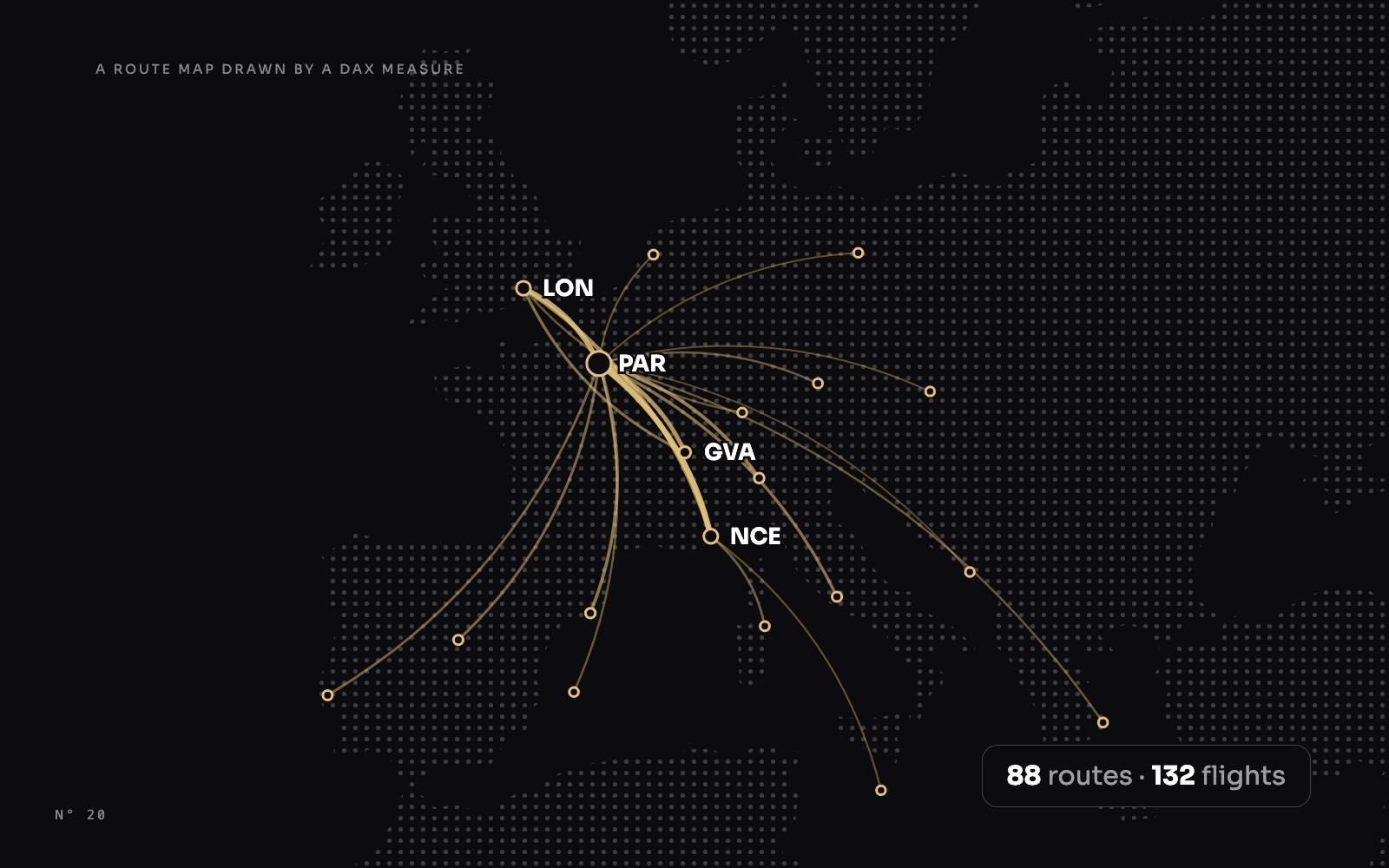
The route map of Aurum Jet, a free Power BI report, has two modes. Live shows the flight on display, with a jet that flies its route (how that part works). Click Network, and the map draws every route of the period at once: thick arcs for the busy routes, faint ones for the rare, airports sized by their traffic, and the names of the busiest.
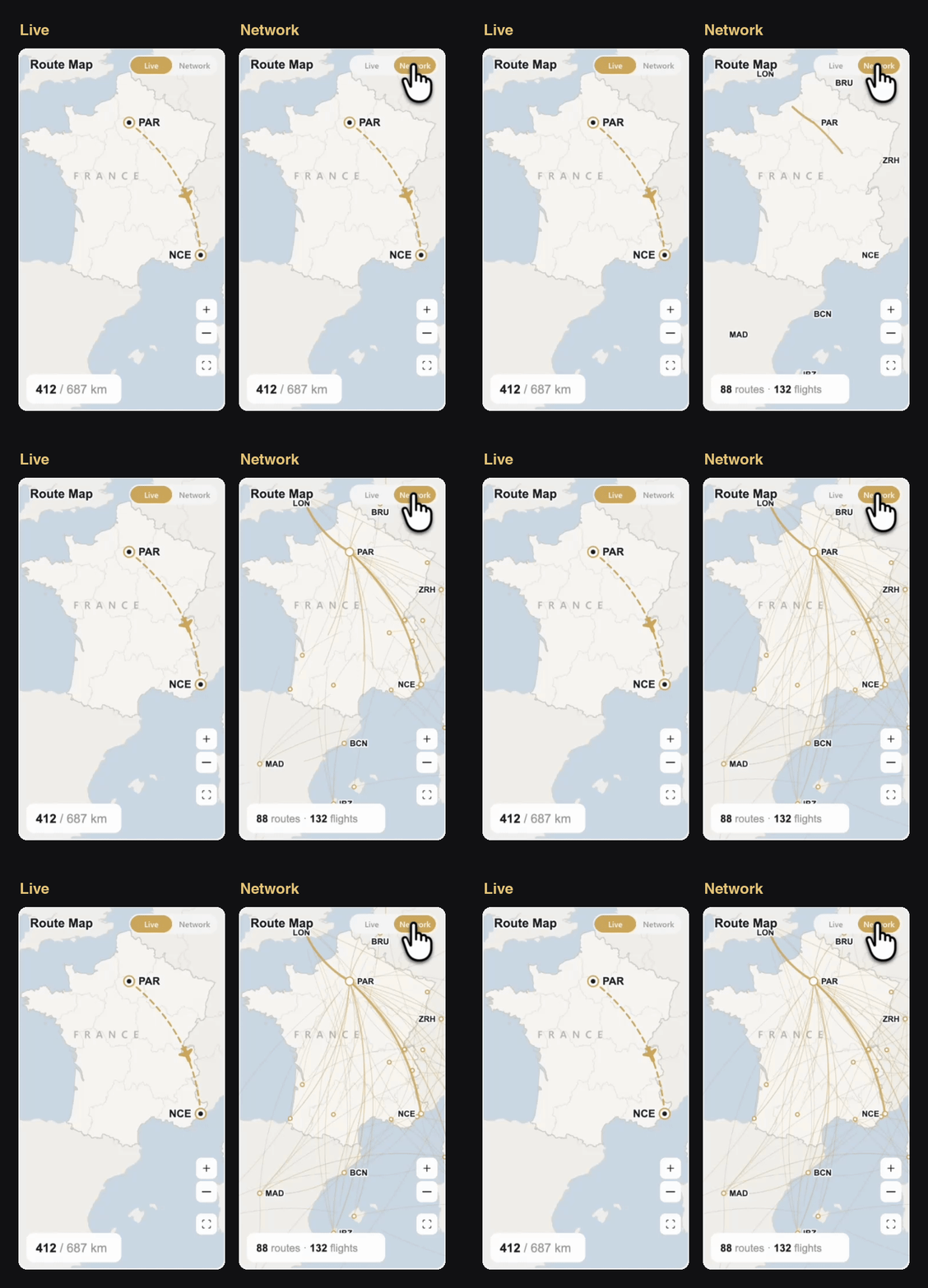
There is no map visual on the page. The map of France is an image, and everything on it is one SVG returned by a DAX measure: the projection, the arcs, the airports, the labels and their placement. On the Flights page, a second measure goes one step further and frames the map on the routes it shows.
Why not a map visual
Power BI's map visuals place points well. Drawing a curve between two of them, weighted by traffic, and drawing the busiest on top, is a different job. The scatter chart over an image that we used for Colis Pro places bubbles exactly, but it has no way to join two of them.
An SVG has paths. And a measure can compute where every path starts, ends and bends.
Step 1: two lines of projection
The map image has known bounds: 5° W to 8.9° E, 37.4° N to 52° N. Its axes are straight, so a longitude is a fixed share of the width and a latitude a fixed share of the height. The SVG on top uses the same bounds on a 355 × 620 canvas, the shape of the card:
"@x1", ( ( LOOKUPVALUE ( DimAirport[Longitude], DimAirport[AirportCode], FactFlight[Origin] ) - ( -5.0 ) ) / 13.9000 * 355 ),
"@y1", ( ( 52.0 - LOOKUPVALUE ( DimAirport[Latitude], DimAirport[AirportCode], FactFlight[Origin] ) ) / 14.6000 * 620 ),The only rule is that the image must be drawn with the same bounds and the same straight axes. Our map without Azure Maps explains why, and how to get such an image. One honest detail: a degree of longitude is shorter than a degree of latitude, about 0.69 times at the latitude of France. This map uses 0.6, so France is a little narrower than in an atlas, to fill a tall card. It doesn't show, and the airports still sit on their cities, because the image and the formula share the squeeze.
Step 2: the routes of the period
The measure starts with a table of the routes flown in the period, with their number of flights:
VAR _r0 = ADDCOLUMNS ( CALCULATETABLE ( SUMMARIZE ( FactFlight, FactFlight[Origin], FactFlight[Destination] ),
        DATESBETWEEN ( DimDate[Date], _p1, _p2 ), FactFlight[TakeOff] <= _t ),
    "@n", CALCULATE ( COUNTROWS ( FactFlight ), DATESBETWEEN ( DimDate[Date], _p1, _p2 ), FactFlight[TakeOff] <= _t ) )
VAR _r1 = ADDCOLUMNS ( TOPN ( 50, _r0, [@n], DESC ), "@x1", …, "@y1", …, "@x2", …, "@y2", … )
VAR _nmax = MAXX ( _r1, [@n] )
_p1 and _p2 are the start and end of the period chosen with the pills at the top (Today, Week, Month, Year), and _t is the report's "now", so a flight that hasn't taken off yet doesn't count. TOPN ( 50, … ) keeps the busiest routes, and only then does the measure look up their coordinates. Fifty lookups instead of one per route ever flown.
The coordinates come from LOOKUPVALUE on the airport code, not from a relationship. In this model, a filter on the flights doesn't travel to the airport table, so the measure fetches each airport by its code.
Step 3: arcs weighted by traffic
Each route becomes a quadratic curve, bowed sideways by 18 % of its length, the same construction as the Live route. Three attributes carry the traffic, through _k, the route's share of the busiest one:
VAR _arcs = CONCATENATEX ( _r1, VAR _k = [@n] / _nmax
    VAR _qx = ( [@x1] + [@x2] ) / 2 + ( [@y2] - [@y1] ) * 0.18 VAR _qy = ( [@y1] + [@y2] ) / 2 - ( [@x2] - [@x1] ) * 0.18
    RETURN "<path d='M" & FORMAT ( [@x1], "0.0", "en-US" ) & "," & FORMAT ( [@y1], "0.0", "en-US" ) & " Q" & FORMAT ( _qx, "0.0", "en-US" ) & "," & FORMAT ( _qy, "0.0", "en-US" )
        & " " & FORMAT ( [@x2], "0.0", "en-US" ) & "," & FORMAT ( [@y2], "0.0", "en-US" ) & "' fill='none' stroke='#C89C50' stroke-width='" & FORMAT ( 0.8 + 3 * _k, "0.0", "en-US" )
        & "' stroke-opacity='" & FORMAT ( 0.3 + 0.6 * _k, "0.00", "en-US" ) & "' stroke-linecap='round' pathLength='1' stroke-dasharray='1' stroke-dashoffset='1'>"
        & "<animate attributeName='stroke-dashoffset' from='1' to='0' begin='" & FORMAT ( 0.7 * ( 1 - _k ), "0.00", "en-US" ) & "s' dur='1s' fill='freeze'/></path>",
"", [@n], ASC )- Width: from 0.8 for the rarest route to 3.8 for the busiest.
- Opacity: from 0.3 to 0.9, so fifty arcs don't turn into a gold blur.
- Order:
CONCATENATEXsorts by[@n]ascending. SVG paints in order, so the busiest routes come last and sit on top.
The drawing effect is a three-attribute trick. pathLength='1' tells the browser to measure this path as if it were 1 long, whatever its real length. stroke-dasharray='1' then makes one dash exactly as long as the path, and stroke-dashoffset='1' slides it out of view. Animating the offset from 1 to 0 slides it back in: the arc draws itself from its origin. No length to compute in DAX.
begin='0.7 * ( 1 - _k )' staggers the start: the busiest route starts at once, the rarest 0.7 s later. The eye reads the network in order of importance.
Step 4: airports sized by their traffic
Every airport inside the map's bounds that appears in a route of the period gets a ring. Its radius goes from 3 to 7 with its traffic, and it pops in after the first arcs:
VAR _pts = CONCATENATEX ( _a, VAR _r = 3 + 4 * [@t] / _amax
    RETURN "<circle cx='" & FORMAT ( [@x], "0.0", "en-US" ) & "' cy='" & FORMAT ( [@y], "0.0", "en-US" ) & "' r='0' fill='" & _c_tile & "' stroke='#C89C50' stroke-width='2'>"
        & "<animate attributeName='r' from='0' to='" & FORMAT ( _r, "0.0", "en-US" ) & "' begin='0.4s' dur='0.4s' fill='freeze'/></circle>", "" )
[@t] is the airport's traffic over all the routes of the period, not only the fifty drawn: a small airport that only appears on rare routes still gets its ring.
Step 5: labels that don't collide
Fifty routes can touch thirty airports, and thirty labels on a card this size are unreadable. The measure keeps six, the busiest, and drops any of those six that has a busier one too close:
VAR _top = TOPN ( 6, _a, [@t], DESC )
VAR _vus = FILTER ( _top, VAR _t0 = [@t] VAR _x0 = [@x] VAR _y0 = [@y] RETURN
    ISEMPTY ( FILTER ( _top, [@t] > _t0 && ABS ( [@x] - _x0 ) < 46 && ABS ( [@y] - _y0 ) < 18 ) ) )
For each airport, the inner FILTER looks for a busier airport within 46 units across and 18 up or down, roughly the size of a three-letter code. If there is one, ISEMPTY is false and the label goes. Nice and Cannes, 25 km apart, would print their codes on top of each other: only the busier keeps its name.
Then each label picks a side. By default it goes to the right of its ring. Near the right edge (x > 290) it goes to the left, and near the top (y < 60) it goes under the ring, below the card's title. And every label gets a halo in the card's colour, drawn under the text by the text itself:
<text … fill='#191A21' stroke='#FFFFFF' stroke-width='4' paint-order='stroke' stroke-linejoin='round'>NCE</text>paint-order='stroke' paints the 4-unit outline first and the letters over it, so the outline becomes a halo that cuts through the arcs underneath. Both colours are colour measures, so the halo follows the Light and Dark switch.
Last, the pill at the bottom counts what the period holds, not what is drawn: COUNTROWS ( _r0 ) routes and SUMX ( _r0, [@n] ) flights. In the recording, "88 routes · 132 flights", for fifty arcs on the map.
A map that frames itself
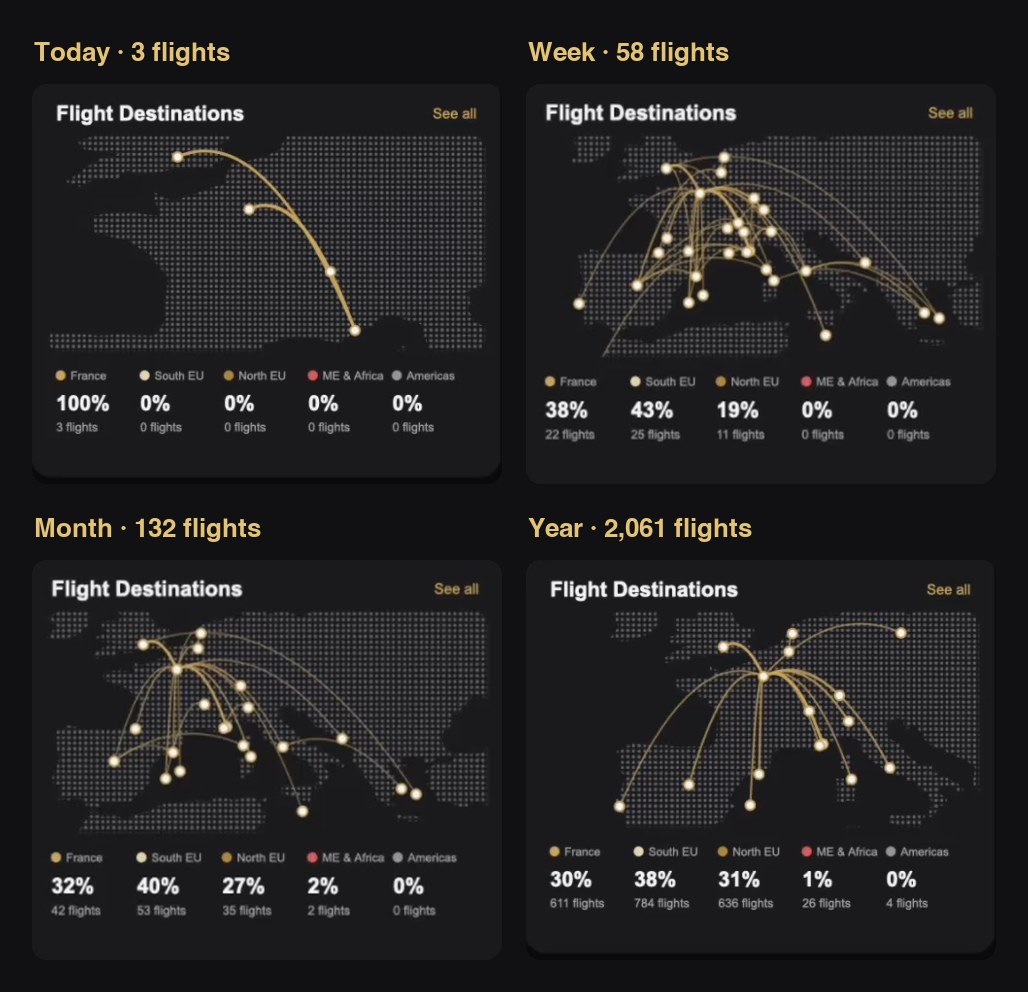
The Dashboard map always shows France. The destinations map on the Flights page covers Europe, and a fixed frame would waste most of the card: on a quiet day, three flights within France; over a year, routes across the whole continent. So the measure computes its own frame, from the routes it is about to draw.
VAR _geo = UNION ( SELECTCOLUMNS ( _r1, "@lo", [@lo1], "@la", [@la1] ), SELECTCOLUMNS ( _r1, "@lo", [@lo2], "@la", [@la2] ) )
VAR _eu = FILTER ( _geo, [@lo] >= -12 && [@lo] <= 30 && [@la] >= 34 && [@la] <= 62 )
VAR _lomin = COALESCE ( MINX ( _eu, [@lo] ), -2 ) VAR _lomax = COALESCE ( MAXX ( _eu, [@lo] ), 8 )
VAR _lamin = COALESCE ( MINX ( _eu, [@la] ), 42 ) VAR _lamax = COALESCE ( MAXX ( _eu, [@la] ), 51 )
VAR _cx = ( _lomin + _lomax ) / 2 VAR _cy = ( _lamin + _lamax ) / 2
VAR _slo = MAX ( ( _lomax - _lomin ) * 1.16, 10 ) VAR _sla = MAX ( ( _lamax - _lamin ) * 1.24, 6 )
VAR _kb = MIN ( 398 / _slo, 196 * 0.72 / _sla )
VAR _kx = MIN ( 398 / _slo, _kb * 1.35 ) VAR _ky = MIN ( 196 * 0.72 / _sla, _kb * 1.35 )
Read it in four moves:
- Collect the ends of the 14 busiest routes, both origins and destinations, in one column with
UNION. - Keep Europe. New York, Dubai and Marrakech are real destinations, and they would shrink Europe to a corner. Their arcs are still drawn, and leave the frame on their way out.
- Add margins and a floor. 16 % more longitude, 24 % more latitude (room for the arcs, which bow upwards), and never less than 10° by 6°, so three flights within France don't zoom to street level.
COALESCEgives a default frame when the period is empty. - Scale.
_kbis the single scale that fits the box into the drawing zone (398 × 196). Then each axis may stretch up to 1.35 times that, so a wide, flat network fills the card instead of floating in the middle. On a map made of dots, a little stretch doesn't show.
The 0.72 is the same correction as on the Dashboard: a degree of longitude is about 0.72 of a degree of latitude around 44° N. Each point then lands at:
"@x1", ( 213.0 + ( [@lo1] - _cx ) * _kx ), "@y1", ( 154.0 + ( _cy - [@la1] ) * _ky / 0.72 )The land moves with it. The coastline is Natural Earth's land outline, projected once (by a short script) into a base grid where x is ( lon + 35 ) × 10 and y is ( 72 - lat ) × 10 / 0.72, and stored as one long SVG path inside the measure. The measure never recomputes the coastline: it only writes the transform that moves and scales that path into the frame:
VAR _terre = "translate(" & FORMAT ( 213.0 + ( -35 - _cx ) * _kx, "0.0", "en-US" ) & " " & FORMAT ( 154.0 + ( _cy - 72 ) * _ky / 0.72, "0.0", "en-US" )
    & ") scale(" & FORMAT ( _kx / 10, "0.0000", "en-US" ) & " " & FORMAT ( _ky / 10, "0.0000", "en-US" ) & ")"
The path is used as a clipPath, and a rectangle filled with a pattern of small dots is drawn through it. The land is made of dots, and the dots stay the same size at every zoom, because the pattern isn't scaled with the land.
The arcs on this map bow upwards: the control point sits above the higher end, by 18 % of the horizontal distance plus 6 units. Every route arches like a flight path on an airline's map, whatever its direction.
Build it in Power BI Desktop
- The map. An image with straight longitude and latitude axes and known bounds, as an Image visual, or, as on the Flights page, a land outline converted once into an SVG path in a base grid.
- The switch. A table with two rows, Live and Network, without any relationship, a button slicer on it, and
Selected map mode = SELECTEDVALUE ( 'Map mode'[Mode], "Live" ). - The routes. In the SVG measure,
SUMMARIZEthe origin and destination of the flights in your period, count them, keep the top 50, then look up the coordinates. - The drawing. Arcs with width, opacity and start time from
_k, sorted ascending; airports with a radius from their traffic; six labels at most with theISEMPTYtest; the pill. - The card. A new card visual over the image, background off, with the measure in its image and the value area at 0, as described in the jet article.
- Test the extremes. A quiet day, a full year, and a filter that leaves one route.
The traps
TOPNkeeps ties. "The 14 busiest routes" of a week where most routes have one or two flights is not 14 routes:TOPNreturns every route tied with the 14th. You can see it in the Week map above. To get exactly 14, add a second sort key, such as the origin then the destination, so that no two rows tie.- The edges collide. Labels near the top meet the card's title, and labels near the bottom meet the pill. Network mode puts top labels under their ring, but in the recording "IBZ" still slips under the pill. And the Live mode doesn't apply the top rule at all: on a flight from London, "LON" runs into the title (you can see it in the jet article). Give the title and the pill their own exclusion zones, in both modes.
- Lookups go after
TOPN. Looking up the coordinates of every route before keeping fifty does the work hundreds of times for nothing. - Relationships may not carry the filter. If your flights don't filter your airports, use
LOOKUPVALUEon the code, as here, rather thanRELATEDfrom the wrong side. - These are not great circles. The arcs are simple curves for the eye. At the scale of Europe nobody minds. For transatlantic routes, the real path is a different shape.
- The SVG grows with the routes. Each arc adds a few hundred characters. Fifty is comfortable. If you raise it, watch the time the card takes to draw.
Try it
- Aurum Jet: download the report, open the Dashboard, switch the map to Network and change the period. The measures are
Route map (SVG)andFlights destinations (SVG). - The other half of the map, the jet that flies the Live route: the jet that stops where the flight is.
- The report itself: Aurum Jet, a free Power BI report with no custom visuals.
FAQ
Can users click an airport or a route?
No. The map is an image, so it can't filter the page. The Live and Network switch and the period pills are native slicers.
Do the zoom buttons work?
No. The plus, minus and full screen buttons on the Dashboard map are part of the drawing, kept from the mockup. They are decoration.
Does it work in the Power BI Service?
Yes. The recordings on this page come from the published report.
Can I use my own map?
Yes. Any area works, as long as the image or the land path and the formula share the same bounds and the same axes.