

PBIR & agents
Give your AI agent eyes: the Power BI Desktop Bridge from a Mac
An AI agent on a Mac drives Power BI Desktop in a Windows VM with the Desktop Bridge: write, validate, reload, capture every page, read the PNGs, fix.
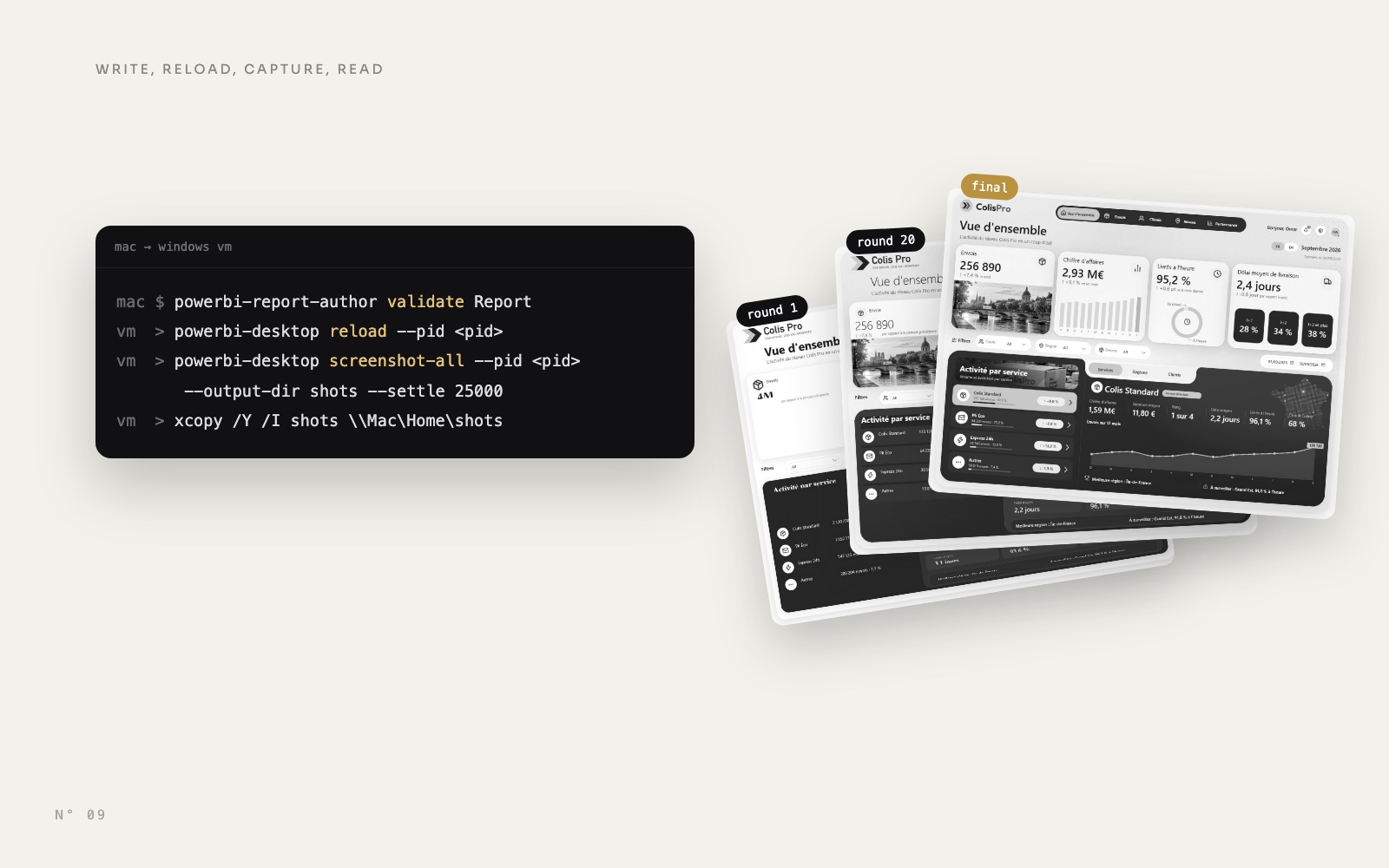
An AI agent can write a Power BI report: with PBIR, pages and visuals are folders of JSON files. What it cannot do on its own is see what Power BI Desktop draws from those files. And Desktop only runs on Windows, while plenty of us work on a Mac.
Colis Pro, a free Power BI report built with an AI agent, took 77 rounds. In each one, the agent wrote the files on a Mac, validated them, reloaded Power BI Desktop in a Windows virtual machine, captured every page, read the PNGs and fixed what it saw. Nobody had to take a screenshot for it.
This article is that setup: the loop, the five commands, a small wrapper and the pitfalls we hit.
Why the agent needs eyes
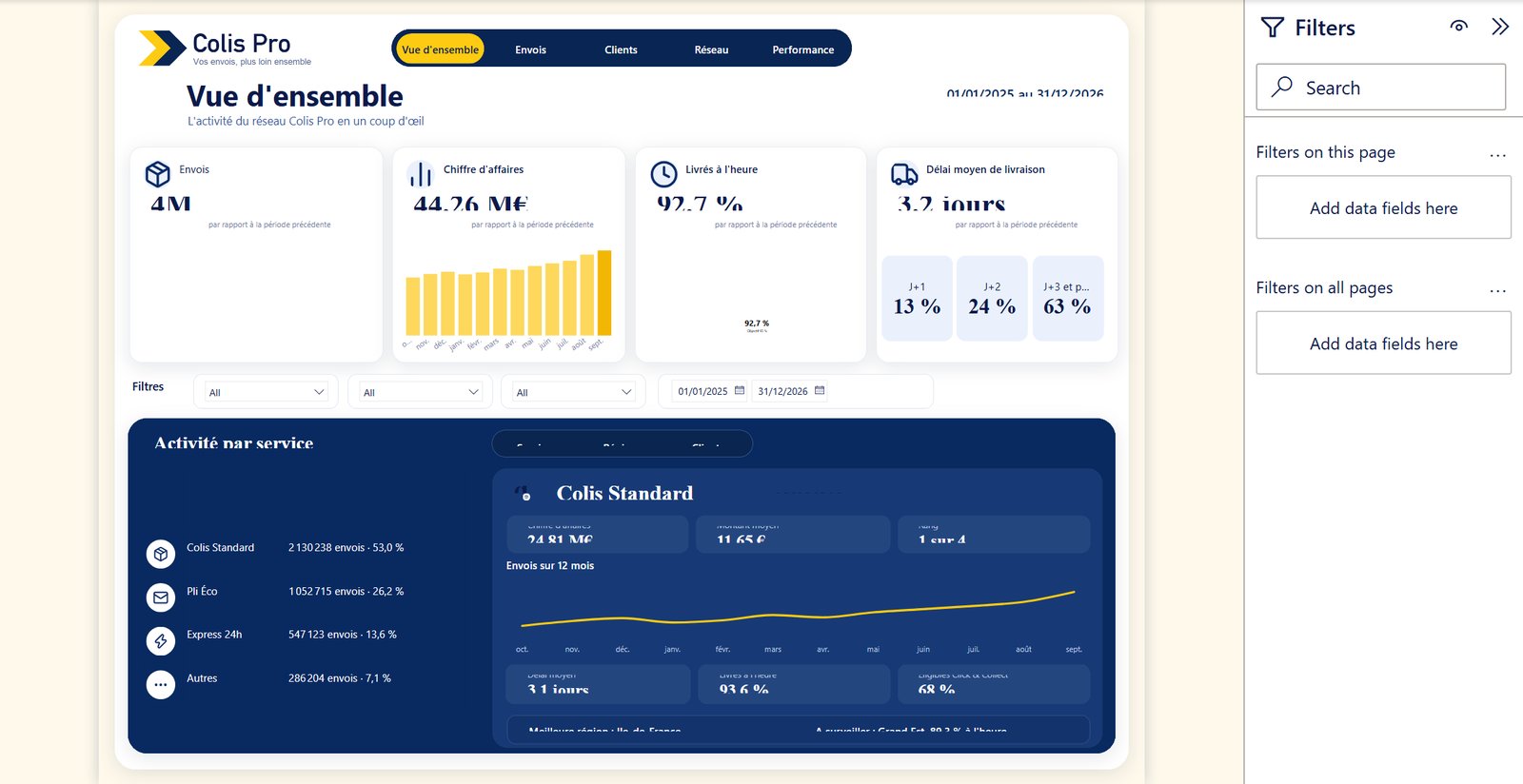
Microsoft's offline validator, powerbi-report-author validate, checks the schema: unknown objects, misspelt properties, invalid enum values. It never renders anything. The first render of Colis Pro passed it with 0 errors and 0 warnings, and still showed clipped values and a ring with nothing in it. A property in the wrong entry is silently ignored; a scatter trend line is valid and never drawn. We listed seven of these in The PBIR validator passes, Desktop disagrees. For an agent the lesson is the same as for a person: validate for structure, then look at the render.
The loop
- Write. The agent edits the PBIR JSON on the Mac, and the TMDL model when a measure changes.
- Validate.
powerbi-report-author validateruns offline on macOS, in seconds. - Reload. Desktop re-reads the report from disk, without restarting.
- Capture.
screenshot-allwrites one PNG per page, inside the VM. - Copy back.
xcopymoves the PNGs to the Mac's shared folder. - Read and fix. The agent opens each PNG, compares it with the mockup, and starts the next round.
The PNG shows the canvas as you see it while editing: the Filters pane is there, and dynamic text values carry the gold underline Desktop draws on the canvas. Judge the report, not the chrome around it.
How the pieces connect
The Desktop Bridge is a small local server inside the Power BI Desktop process. Tools reach it through a named pipe, pbi-desktop-bridge-<pid>, one per open Desktop window. Microsoft's documentation is explicit: the pipe is local only, and remote access is not supported. Desktop is the server. The client is the Power BI Desktop Bridge CLI: npm package @microsoft/powerbi-desktop-bridge-cli, command powerbi-desktop.
That CLI is Windows-only. Run powerbi-desktop status on a Mac and it answers UNSUPPORTED_OS: "Power BI Desktop Bridge discovery is only supported on Windows." So the CLI lives in the VM, next to Desktop, and the Mac only needs a way to start it there.
Set it up, step by step
- A Windows VM with Power BI Desktop. We used Parallels Desktop and the Microsoft Store build of Power BI Desktop.
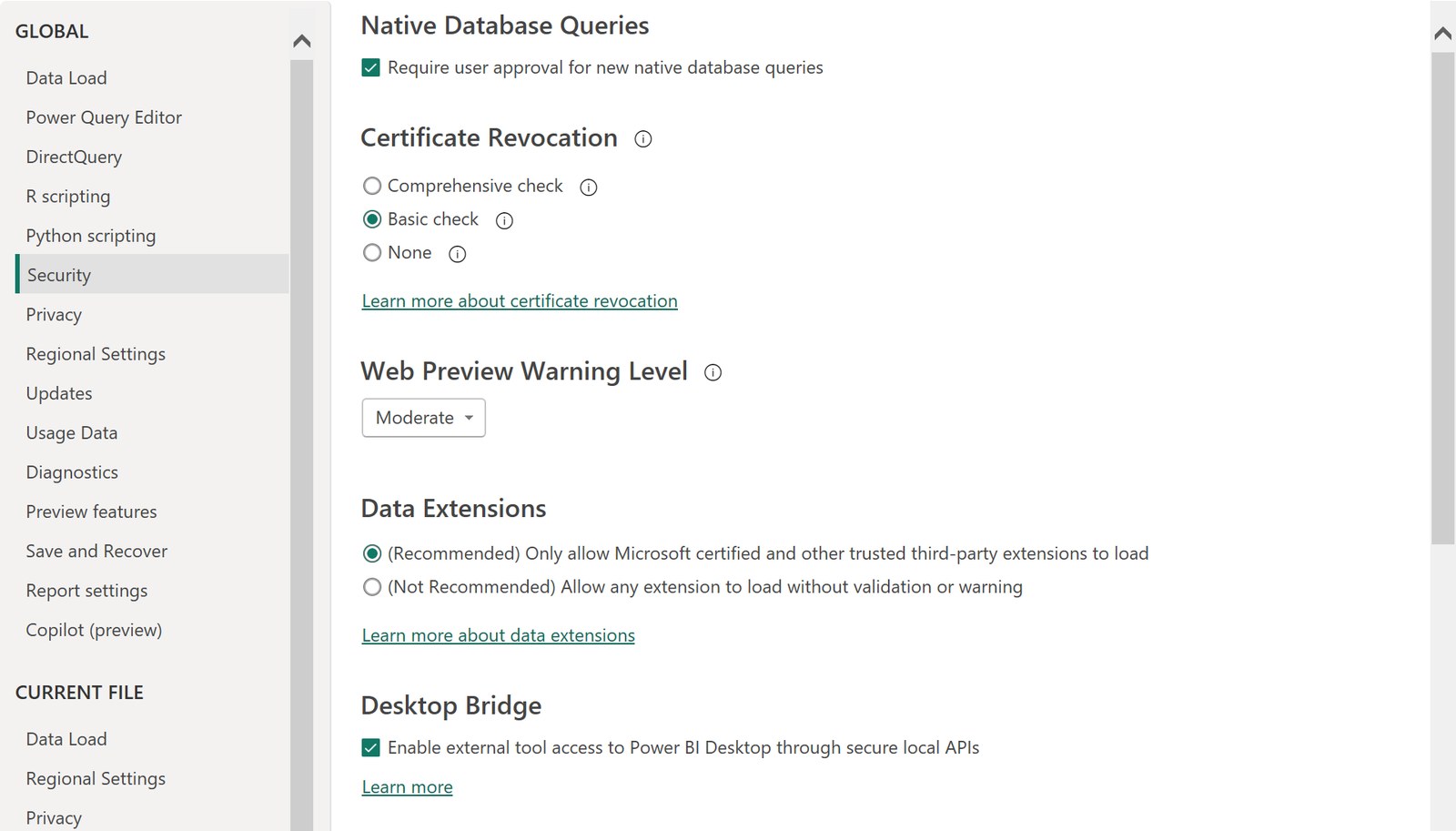
- Turn on the bridge in Desktop. Go to File > Options and settings > Options > Security and tick Enable external tool access to Power BI Desktop through secure local APIs, in the Desktop Bridge section. Microsoft's documentation says it is on by default. Earlier builds listed it under Preview features.
- Install Node and the CLI inside the VM. The documented route is
npm install -g @microsoft/powerbi-desktop-bridge-cli. We used a portable Node 22 and installed the CLI in a folder of the Windows user profile, outside any project. - Point the CLI at the Store build. The CLI does not find a Store install on its own and stops with
DESKTOP_EXE_NOT_FOUND. SetPBI_DESKTOP_PATHto itspbidesktop.exe, inC:\Program Files\WindowsApps\Microsoft.MicrosoftPowerBIDesktop_<version>_x64__8wekyb3d8bbwe\bin\. The version in that folder name changes with each Store update. In PowerShell,(Get-AppxPackage Microsoft.MicrosoftPowerBIDesktop*).InstallLocationprints the current one. - Drive the VM from the Mac.
prlctl exec "<VM>" --current-user cmd /c "..."runs a command in the logged-in Windows session. No SSH server needed. Go throughcmd, not PowerShell: there, an npm notice on stderr becomes an error. - Open the project from the Mac share. The VM sees your Mac's home folder as
\\Mac\Home\..., so Desktop opens the very files the agent writes.
The five commands
Inside the VM, or through prlctl exec from the Mac:
powerbi-desktop open "\\Mac\Home\<project>\Report.pbip"
powerbi-desktop status
powerbi-desktop reload --pid <pid>
powerbi-desktop screenshot <page-id> --pid <pid> --output "%LOCALAPPDATA%\shots\page.png" --scale 1
powerbi-desktop screenshot-all --pid <pid> --output-dir "%LOCALAPPDATA%\shots" --settle 25000 --scale 1statuslists each Desktop instance with its pid, open file, pages and unsaved-change state. The other commands target one instance with--pid.reloadre-reads the report currently open in that instance.screenshotcaptures one page by its PBIR page id.screenshot-allcaptures every page listed inpages.json. The CLI's default scale is 2; we used 1.--settlewaits before the first capture, in milliseconds. 20 to 25 seconds let every visual render.
Run them one at a time per instance: overlapping operations on the same Desktop may be cancelled or time out.
A small wrapper on the Mac
Two short scripts turn each step into one call for the agent. The first runs the CLI inside the VM:
#!/bin/bash
# pbd.sh: run the bridge CLI in the VM's logged-in Windows session.
VM="<VM>"
DESKTOP='C:\Program Files\WindowsApps\<Power BI Desktop folder>\bin\pbidesktop.exe'
NODE='%LOCALAPPDATA%\bridge\node\node.exe'
CLI='%LOCALAPPDATA%\bridge\cli\node_modules\@microsoft\powerbi-desktop-bridge-cli\dist\cli.js'
prlctl exec "$VM" --current-user cmd /c "set PBI_DESKTOP_PATH=$DESKTOP&& $NODE $CLI $*"
The agent then calls bash pbd.sh status or bash pbd.sh reload --pid 1234 like a local command. Keep && glued to the path: with a space before it, cmd keeps that space in the variable.
The second captures every page and brings the PNGs back to the Mac:
#!/bin/bash
# capture.sh <pid> <folder under your Mac home> [settle_ms]
VM="<VM>"; PID=$1; DEST=$2; SETTLE=${3:-25000}
LOCAL='%LOCALAPPDATA%\bridge\shots'
WIN_DEST="\\\\Mac\\Home\\$(echo "$DEST" | sed 's#/#\\#g')"
prlctl exec "$VM" --current-user cmd /c "rmdir /S /Q $LOCAL" >/dev/null 2>&1 || true
bash "$(dirname "$0")/pbd.sh" screenshot-all --pid "$PID" --output-dir "$LOCAL" --settle "$SETTLE" --scale 1
mkdir -p ~/"$DEST"
prlctl exec "$VM" --current-user cmd /c "xcopy /Y /I $LOCAL $WIN_DEST" >/dev/null
ls ~/"$DEST"
Why not point --output-dir straight at the Mac share? Because that write failed at times.
Pitfalls
| Symptom | Cause | Fix |
|---|---|---|
screenshot-all fails with "write ECANCELED" | Writing to the Mac share fails at times | Capture into a VM folder, then xcopy |
Same error on status or reload | The CLI's own output through prlctl exec fails at times | Redirect it to a file in the VM and read the file. Rerun: it is transient |
DESKTOP_EXE_NOT_FOUND | Store build, folder renamed by an update | Update PBI_DESKTOP_PATH |
| A command fails on an npm notice | PowerShell treats stderr output as an error | Launch through cmd |
| A TMDL change does not show | In our runs, reload did not re-read the model | Close Desktop without saving, open the .pbip again |
| "Print metadata is not available" | Desktop has only just opened the report | Wait a few minutes, capture again |
reload hits the wrong report | open returned the pid of another Desktop instance | Identify the instance by its window title first |
| Loading freezes | screenshot-all started during a data refresh | Never capture during a refresh; stop the stuck CLI process, not Desktop |
| A sign-in dialog blocks Desktop after a reload | An Azure Maps visual on the page | Replace the map |
One rule did not fit in the table: one writer at a time. The agent and Desktop can both write the same files. reload discards unsaved edits made in Desktop, and after a reload Desktop shows unsaved changes of its own: never save from Desktop over files the agent just wrote. When Desktop did save our project, it emptied the period of every synced date slicer, and a script had to restore it. If you edit and save in Desktop, the agent re-reads the files before it writes again.
The official shortcut
Microsoft's authoring CLI, @microsoft/powerbi-report-authoring-cli (the package that holds the validator), added a preview command in version 0.3.0-beta.0. It wraps the bridge:
powerbi-report-author preview "<project>\Report.Report" --host desktop --reload
powerbi-report-author preview "<project>\Report.Report" --host desktop --reload-with-model
powerbi-report-author preview "<project>\Report.Report" --host desktop --screenshot "<dir>" --all-pages
--reload-with-model reloads the report and the semantic model definitions, without refreshing data: the step we did by closing and reopening Desktop. We drove the raw bridge CLI and did not test the wrapper. The command is still in 0.5.0, the current release on npm, and the package as a whole is marked public preview. It does not change the Mac side: on macOS its Desktop host reports the same UNSUPPORTED_OS, so it runs in the VM too.
What it changed for Colis Pro
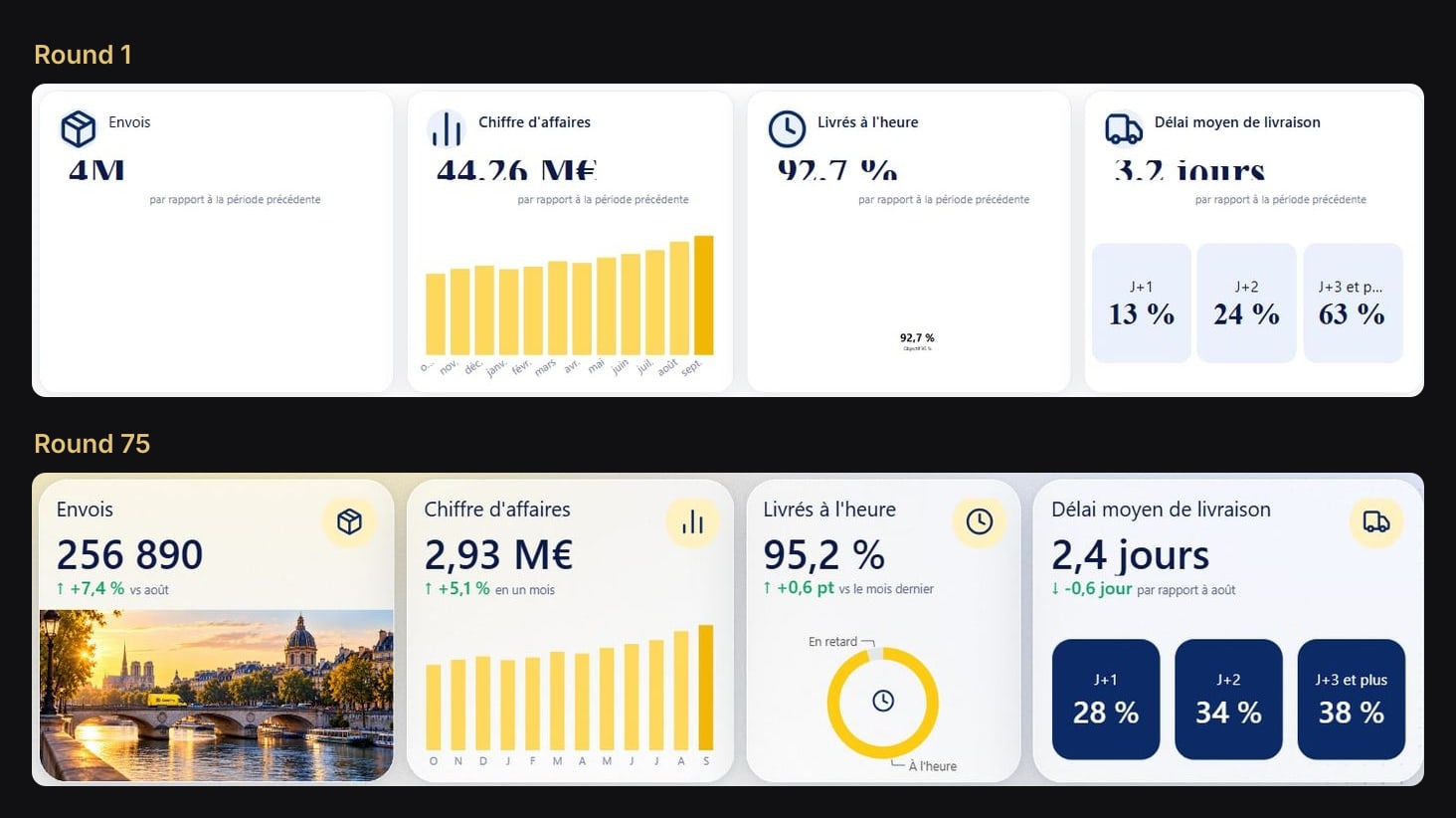
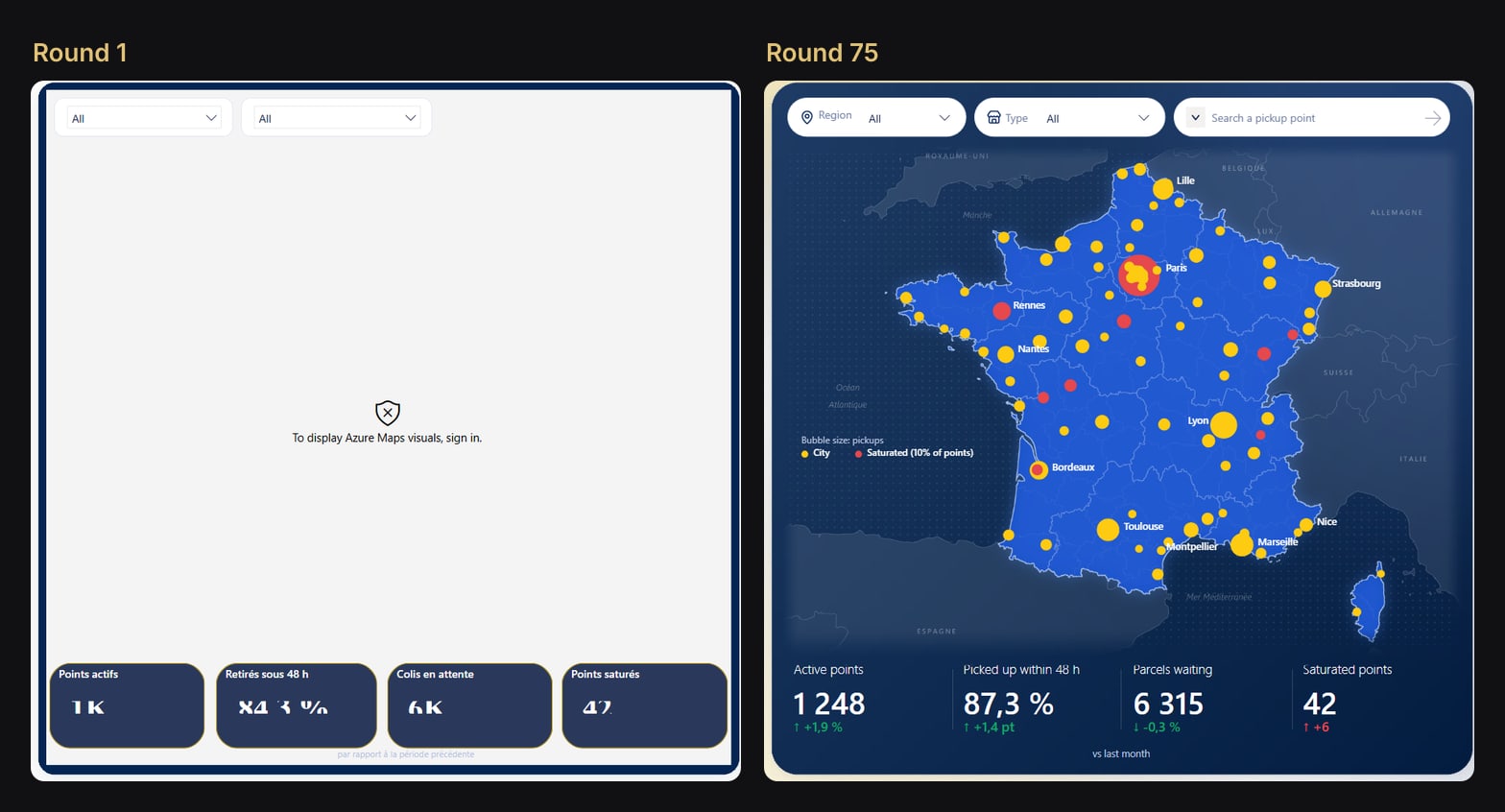
Before the bridge, every visual check waited for a human screenshot. With it, the agent opened the report, captured all the pages and listed every visual in error, empty or badly drawn, page by page. The first seven rounds fixed those. The next seventy went into the design, and into French and English versions of every page.
The render settled what no schema check can: KPI cards that clipped their own values until their margins went to zero, a ring that lost every colour until % was encoded as %25 in its SVG measures, a map that only asked to sign in.
Some states need a click. For the French and English versions of the report, the agent changed the default selection of the language slicer in the files, reloaded and captured, then switched it back.
Try it
Download Colis Pro, free: 5 pages and 347 visuals, built through this loop.
If you would rather your agent did not start from a blank page, ChartCraft's MCP server gives it a designed Power BI project on your own semantic model. The loop above then checks it in Desktop, round after round.
FAQ
Does it work without Parallels, or on Windows directly?
On a Windows PC it is simpler: run the CLI next to Desktop, with no prlctl and no shared folder. From a Mac you need a Windows VM; we only ran it with Parallels, whose prlctl exec --current-user reaches the logged-in session.
Do I need a Power BI Pro license?
Not for this loop: Desktop is a free download, the bridge is local and nothing is published. In our runs, the one thing that wanted a sign-in was the Azure Maps visual, and we replaced it.
Can the agent click buttons and slicers?
Not through the bridge: its commands open, reload and capture. We reached other states by editing the files and reloading, and tested button actions by hand with Ctrl+click in Desktop.