

Design techniques
A Power BI month picker for every KPI: the disconnected table
One month picker drives four KPI cards, their change on the previous month and a ten-month trend, without filtering the page. A disconnected table and three measures.
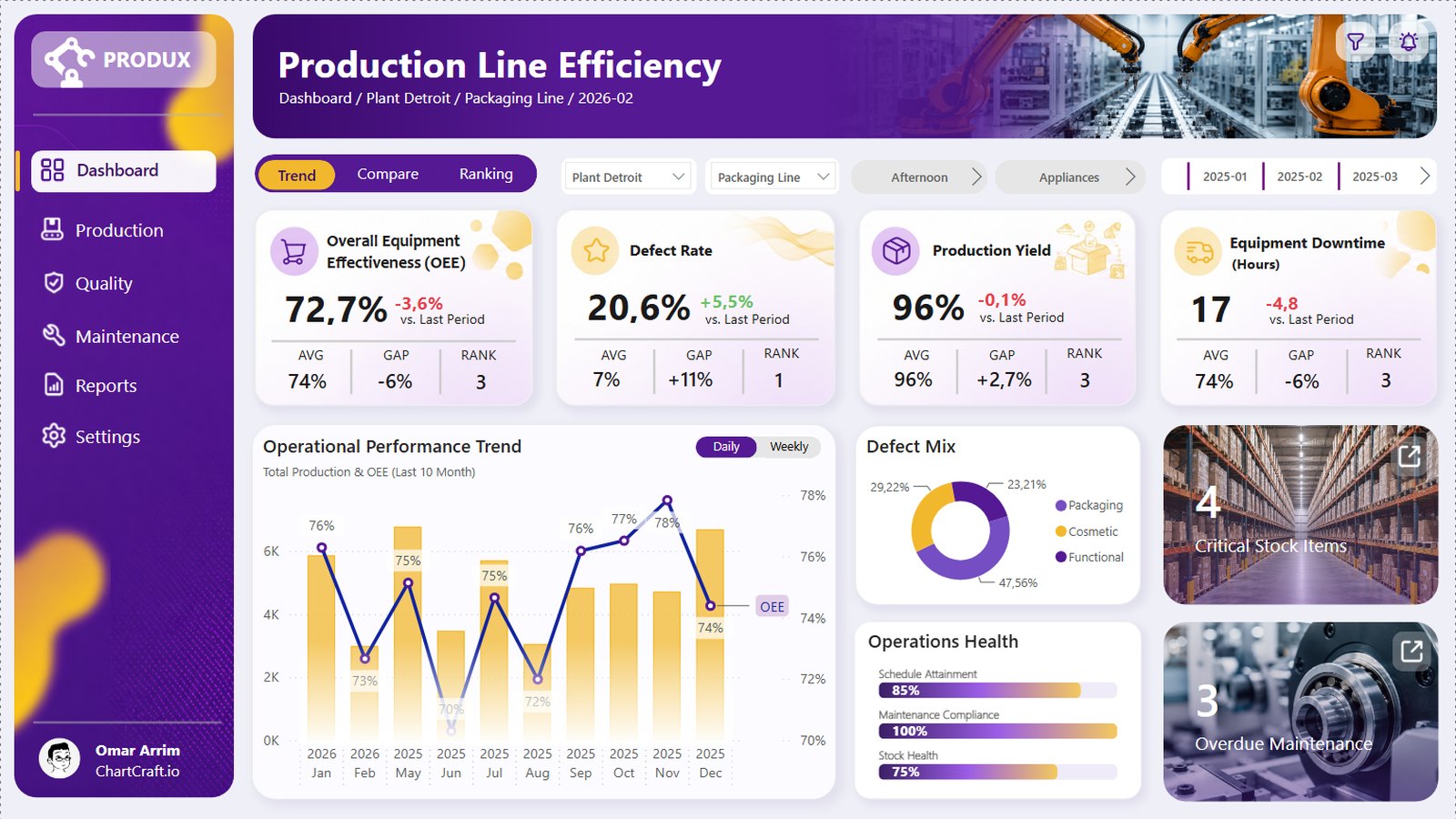
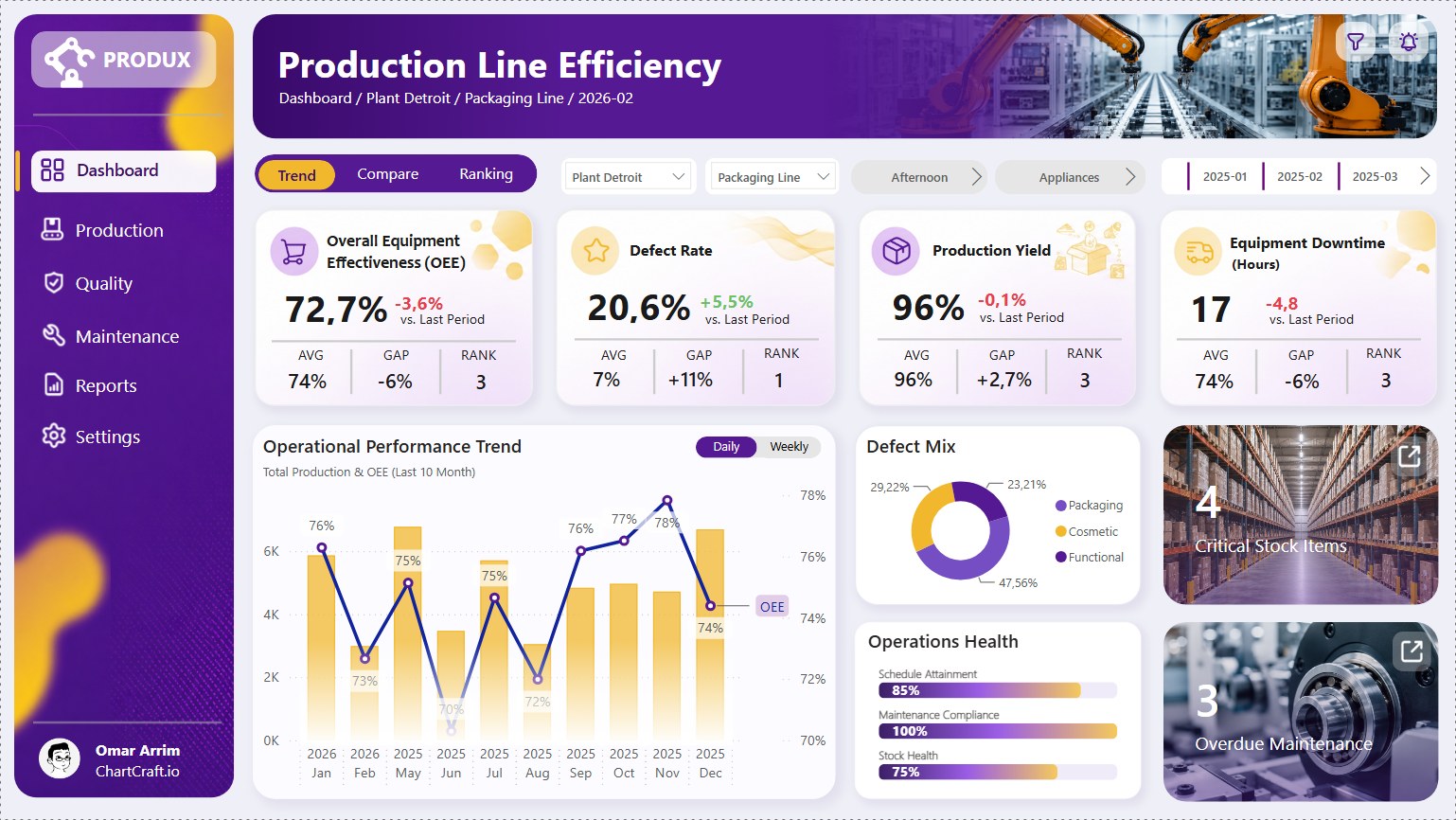
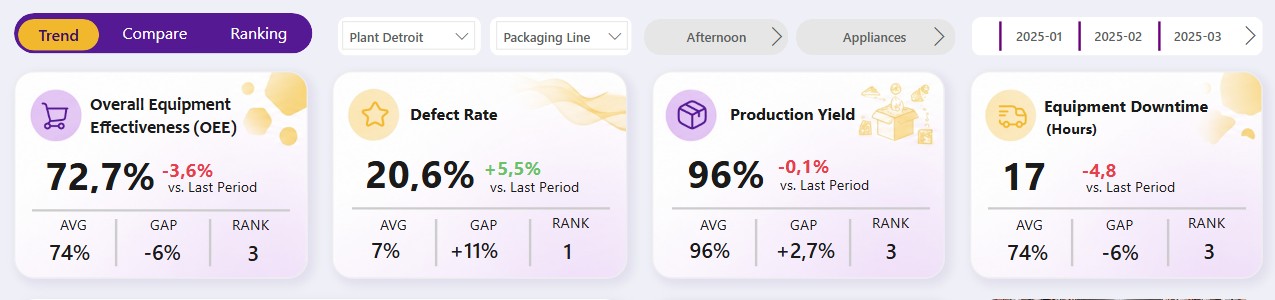
At the top right of the Production Line Efficiency report there is a row of months with a scroll arrow. Pick one, and four things move together: the four KPI cards show that month, the "vs. Last Period" line under each one compares it with the month before, and the trend chart slides to show the ten months that end there.
Nothing else on the page is filtered by it. Click a column of the trend, and the cards keep the month you picked.
This article shows how that picker works, why a plain month slicer can't do it, and how to build it in Power BI Desktop with three measures and a table that has no relationship at all.
Why a normal month slicer falls short
The obvious build is a slicer on the calendar, DimDate[YearMonth], single select. It gets the cards right, and almost everything else wrong:
- The trend collapses. The slicer filters every visual on the page, so the trend chart shows one column: the month you picked.
- Edit interactions only half helps. Turn the slicer off for the trend, and the trend shows the whole calendar, two years, instead of the months that lead to your pick.
- The chart fights the slicer. Click a column of the trend, and the cross-filter reaches the cards through the same calendar. The cards now show the clicked month, while the slicer still says another one.
The report needs a picker that tells the measures which month to show, without filtering anything by itself.
The idea: a picker that filters nothing
The picker is a slicer on its own small table, MonthPicker, with one row per month and no relationship to the model. A slicer on a disconnected table filters only that table, and no visual on the page reads it directly. So the selection does nothing until a measure asks for it.
Three kinds of measures ask:
- The
Selectedmeasures of the cards read the picked month and compute the KPI for it. - The
Variation MoMmeasures compute the same KPI for the month before, and return the difference. - A flag measure,
Is In Trailing 10M, tells the trend which months to keep.
Step 1: the picker table
MonthPicker is a calculated table built from the calendar, so it always has the same months:
MonthPicker =
SELECTCOLUMNS (
    SUMMARIZE ( DimDate, DimDate[Year], DimDate[MonthNumber], DimDate[YearMonth] ),
    "YearMonth", DimDate[YearMonth],
    "SortKey", DimDate[Year] * 100 + DimDate[MonthNumber]
)
YearMonth is text (2026-02), so sort it by SortKey (Column tools, Sort by column) and hide SortKey. Don't draw any relationship: in the model view, the table stands alone.
The slicer is a classic slicer on MonthPicker[YearMonth], in Tile style (horizontal), with the header off. A slicer that is narrower than its tiles shows scroll arrows, and that is the row of months at the top right of the report. Turn Single select on in its selection settings: the measures expect exactly one month.
Step 2: the KPI for the picked month
Every card reads a Selected measure. Here is the OEE one:
OEE Selected =
VAR Sel = SELECTEDVALUE ( MonthPicker[YearMonth] )
RETURN
    CALCULATE ( [OEE], REMOVEFILTERS ( DimDate ), DimDate[YearMonth] = Sel )
Two things do the work:
SELECTEDVALUEreturns the picked month as text, because the slicer filteredMonthPickerdown to one row.REMOVEFILTERS ( DimDate )throws away whatever date filter the card received from elsewhere, then the next argument sets the only one that counts: the picked month. This is what keeps the cards still when someone clicks a column of the trend.
The same three lines wrap the defect rate, the production yield and the downtime hours. Only the inner measure changes.
The other slicers of the page (plant, machine type, shift, product category) still filter the cards as usual, because REMOVEFILTERS only touches the calendar.
Step 3: the change on the previous month, by hand
Under each value, "+4.9% vs. Last Period" compares the picked month with the one before. Time intelligence functions like PREVIOUSMONTH shift the dates already in the filter context, and the card has none: the month lives in the picker. So the measure builds the previous month itself:
OEE Variation MoM =
VAR Sel       = SELECTEDVALUE ( MonthPicker[YearMonth] )
VAR SelStart  = CALCULATE ( MIN ( DimDate[Date] ), ALL ( DimDate ), DimDate[YearMonth] = Sel )
VAR PrevEnd   = SelStart - 1
VAR PrevStart = DATE ( YEAR ( PrevEnd ), MONTH ( PrevEnd ), 1 )
VAR Cur       = [OEE Selected]
VAR Prev      = CALCULATE ( [OEE], REMOVEFILTERS ( DimDate ), DimDate[Date] >= PrevStart && DimDate[Date] <= PrevEnd )
RETURN
    Cur - Prev
The first day of the picked month, minus one day, is the last day of the previous month, and its first day follows. January works too: the day before 1 January 2026 is 31 December 2025.
The format string does the rest: +0.0%;-0.0%;0.0% writes the sign in front of the number. For the downtime, the format is +0.0;-0.0;0.0 hours, and the result reads "+1.6 hours".
One detail is easy to miss: OEE, defect rate and yield are already percentages, so Cur - Prev is a change in points. "+4.9%" here means 4.9 points more than last month, not 4.9 percent more.
Step 4: a trend that follows the picker
The trend shows production as columns and OEE as a line, for the ten months that end at the picked month. A visual can't take a "last ten months" filter relative to a slicer it isn't connected to, so a measure says, for each month on the axis, whether it belongs:
Is In Trailing 10M =
VAR Sel       = SELECTEDVALUE ( MonthPicker[YearMonth] )
VAR EndDate   = CALCULATE ( MAX ( DimDate[Date] ), ALL ( DimDate ), DimDate[YearMonth] = Sel )
VAR StartDate = EOMONTH ( EndDate, -10 ) + 1
VAR RowDate   = MAX ( DimDate[Date] )
RETURN
    IF ( RowDate >= StartDate && RowDate <= EndDate, 1 )
Add it to the trend's visual-level filters, as "is 1". On each column of the axis, MAX ( DimDate[Date] ) is the last day of that month, so the measure keeps the months from ten months before the pick up to the pick itself. Change the month, and the window slides.
The same flag pattern gives any window you like: EOMONTH ( EndDate, -12 ) + 1 for twelve months, or a start of year for year to date.
AVG, GAP and RANK under each card
Each card ends with three small numbers: the daily average, the gap to a target, and the rank of the plant among the five. In the report they read like this:
AVG OEE        = AVERAGEX ( VALUES ( DimDate[Date] ), [OEE] )
GAP OEE        = [OEE] - 0.80
RANK OEE Plant = RANKX ( ALL ( DimPlant[PlantName] ), [OEE], , DESC, Dense )
The defect rate and the downtime rank in ascending order, because lower is better there: RANKX ( ..., ASC, Dense ). The targets are fixed in each measure: 80% OEE, 3% defects, 93% yield, 18 hours of downtime.
Notice that these three use [OEE], not [OEE Selected]. As shipped, they read the whole period in view, not the picked month: the average over every day, the gap and the rank over the same span. That is a fair reading for a benchmark line. If you want them tied to the picker, it is one word each:
GAP OEE Selected        = [OEE Selected] - 0.80
RANK OEE Plant Selected = RANKX ( ALL ( DimPlant[PlantName] ), [OEE Selected], , DESC, Dense )
The breadcrumb that follows
Under the title, "Dashboard / Plant Detroit / Packaging Line / 2026-02" is a card on one more measure, so the reader always knows what the numbers are about:
Dashboard Subtitle =
"Dashboard / "
    & SELECTEDVALUE ( DimPlant[PlantName], "All Plants" ) & " / "
    & SELECTEDVALUE ( DimMachine[MachineType], "All Machines" ) & " / "
    & SELECTEDVALUE ( MonthPicker[YearMonth], "All Periods" )
What to watch
- Single select, always. With two months picked, or none,
SELECTEDVALUEreturns blank and every card goes empty. Keep Single select on, or give the measures a default:SELECTEDVALUE ( MonthPicker[YearMonth], MAX ( MonthPicker[YearMonth] ) )falls back to the latest month. - Save the report with a month picked. The selection is saved with the report, so readers open it on a month, not on blank cards.
- The filter pane won't explain it. A reader who opens the filter pane sees no date filter on the cards. The breadcrumb is there for that reason.
- The tiles scroll. With 24 months in a narrow slicer, the picked month can sit out of view when the report opens. The breadcrumb under the title always shows it.
- Other pages. To reuse the picked month on another page, sync the slicer (View, Sync slicers). It is the same table, so the same measures work there.
Take it apart
The full project is free under the MIT License: the report in PBIR, the model in TMDL with its 57 measures, and the data in CSV. Open it in Power BI Desktop, select a card, and follow its measure.
- See the report and download it
- Want a report like this one, built on your own model? That's ChartCraft Bespoke.