

Design techniques
A collapsible sidebar in Power BI: bookmarks that only touch a few visuals
A sidebar that opens and closes, a chart that turns into a map, and not one filter reset. Two bookmark settings, Selected visuals and Data off, do all of it.
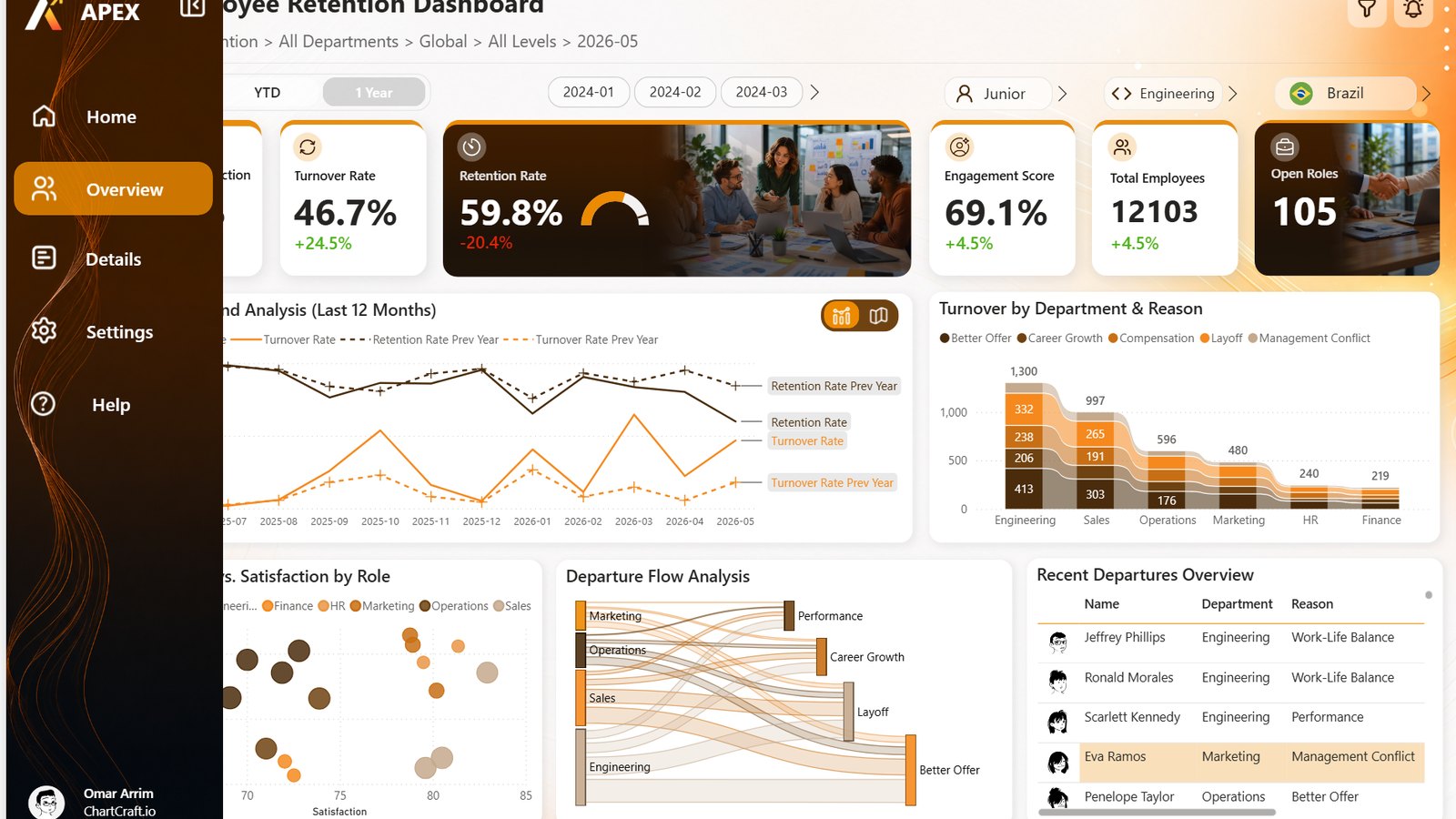
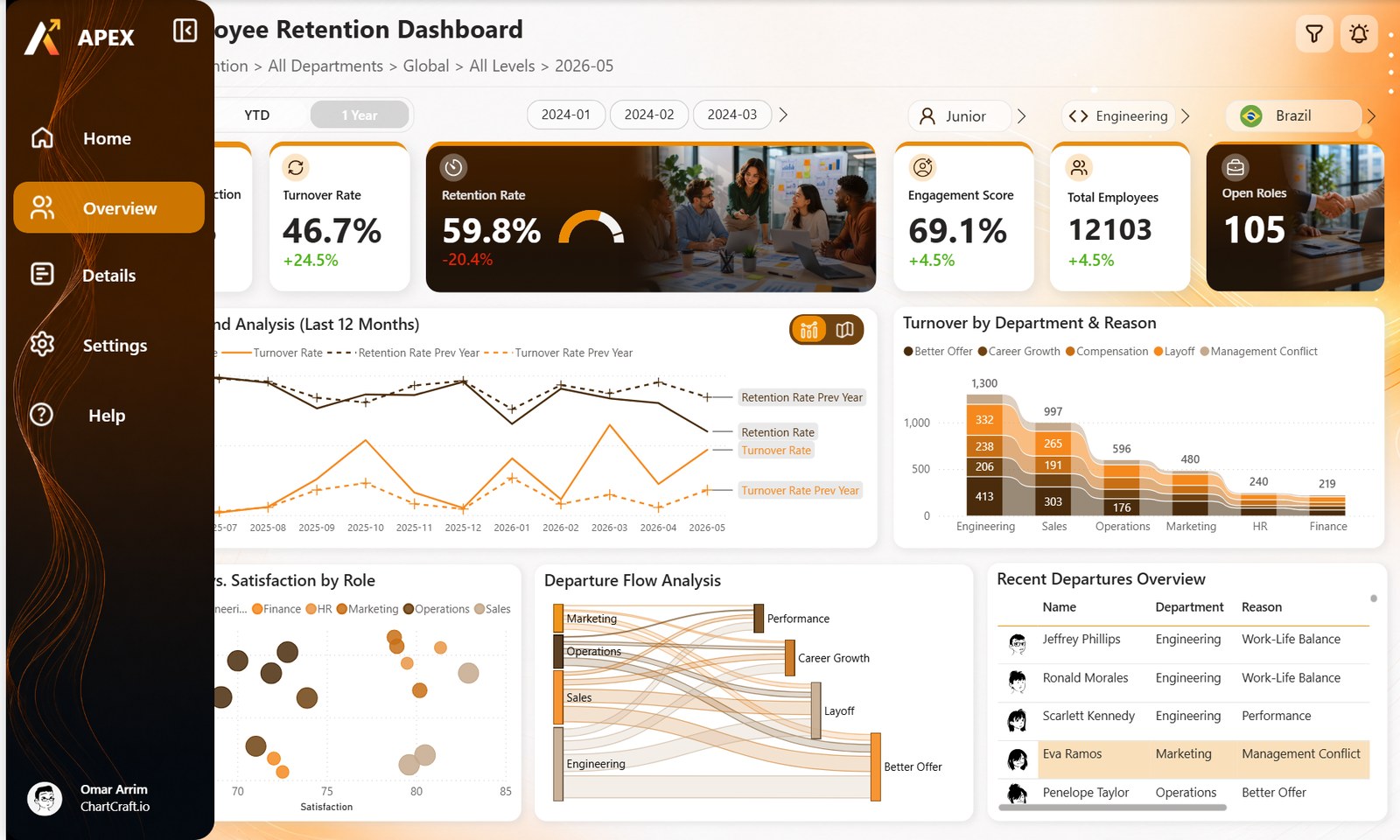
On the left of the Employee Retention report there is a narrow rail of icons. Click the panel icon at the top, and a full sidebar slides over the page: the logo, five labelled buttons, a profile at the bottom. Click the close icon, and it folds back into the rail.
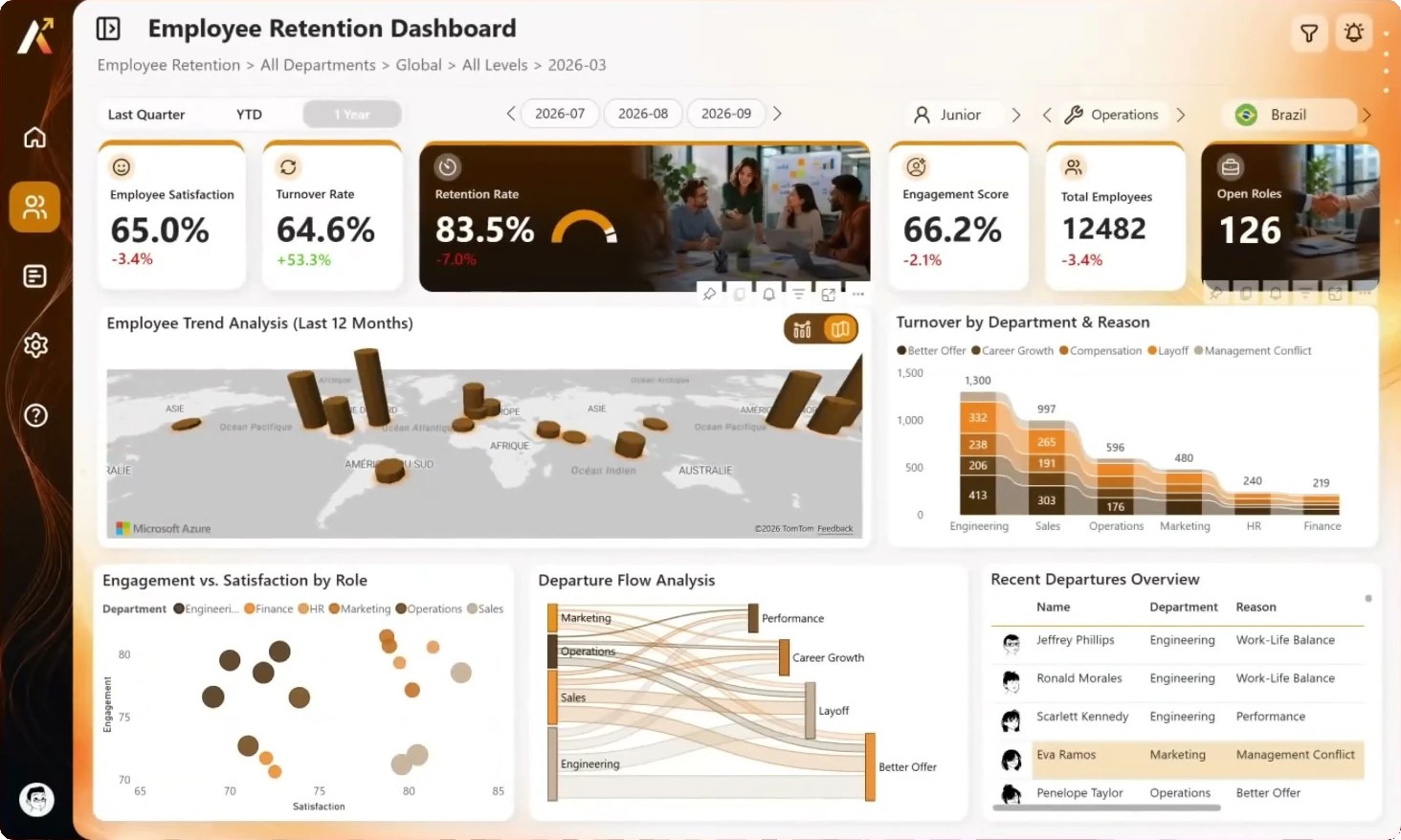
In the trend panel, two small icons do the same kind of thing: one shows the retention and turnover lines, the other swaps them for a map of departures by city.
Pick a month, a department and a country first, then open and close the sidebar, then switch to the map and back. Your month, your department and your country are still there. That last part is the whole trick, and it comes down to two settings on each bookmark.
Why a plain bookmark breaks a report
A bookmark, by default, saves everything about the page when you create it: the filters and slicer selections, which visuals are visible, the sort orders, even the page itself. Clicking it later puts all of that back.
So the naive sidebar works once. You set up the page, open the sidebar, save a bookmark called "Open". A reader picks March and Engineering, clicks "Open", and the slicers jump back to whatever was selected the day you saved the bookmark. The sidebar opened, and the report forgot what the reader was looking at.
A sidebar, a toggle or a pop-up should change what is visible, and nothing else.
Two settings: Selected visuals, Data off
Open the bookmark's menu (the three dots in the Bookmarks pane). Three of its options decide what it restores:
- Data: the filters, slicers and sort orders. Turn it off. The bookmark then never touches the reader's selections.
- Display: which visuals are shown or hidden, and Spotlight. Keep it on. That is the only thing the bookmark is for.
- All visuals / Selected visuals: which visuals it applies to. Choose Selected visuals. The bookmark then only touches the visuals that were selected when you created or updated it, and leaves every other visual as it is.
With these settings, a bookmark becomes a simple instruction: "show these, hide those, touch nothing else".
In the project files (the PBIR format), each bookmark is a JSON file, and those choices are three lines of its options:
"options": {
  "applyOnlyToTargetVisuals": true,
  "targetVisualNames": ["1c7d7bf3200190551194", "8aa30017bb8e900a9560", "..."],
  "suppressData": true
}
applyOnlyToTargetVisuals is Selected visuals, targetVisualNames is the list of visuals that were selected, and suppressData is Data off. The sidebar bookmarks of the report target sixteen visuals, the chart and map ones target six.
The sidebar: two groups that trade places
The sidebar is built from two groups, named in the Selection pane:
- The rail: five icon buttons (home, people, details, settings, help), visible when the report opens.
- The open sidebar: the same five destinations as buttons with labels, on a dark background image, with a close icon at the top and the profile text at the bottom.
Two bookmarks move between them:
| Bookmark | Open sidebar | Background, close icon, profile | Rail |
|---|---|---|---|
Display SB | shown | shown | hidden |
Hide SB | hidden | hidden | shown |
Both target the same sixteen visuals: the two groups, their buttons, the background image, the close icon and the two text boxes. The panel icon in the header runs Display SB. The close icon, which lives inside the open sidebar, runs Hide SB. When the sidebar is closed, its close icon is hidden with it, so there is never a button on screen that does nothing.
The open sidebar sits above everything else in the layer order, and its background image is opaque: it covers the left edge of the report instead of pushing it aside. A Power BI page can't reflow, so covering is the honest way to open a panel.
The chart that turns into a map
The trend panel uses the same pattern with six visuals:
- the line chart (retention and turnover over twelve months, with last year dashed);
- an Azure map of departures by city, at the same position and size;
- and two pairs of icon buttons, a chart icon and a map icon.
Why two pairs? A plain button doesn't know which bookmark is active, so it can't light up by itself (a bookmark navigator can, but it draws its own buttons). Instead, each icon exists twice at the same place: a highlighted version with no action, and a plain version that runs a bookmark. Display Chart shows the chart, the highlighted chart icon and the clickable map icon, and hides the other three. Display Map does the reverse. The reader sees a two-way switch whose current side is lit.
Both bookmarks have Data off, so the map shows the departures for the month, department and country the reader already picked.
Build it in Power BI Desktop
- Name and group in the Selection pane (View, Selection). Give each visual a name you will recognise later, and group the open sidebar (Ctrl+click the visuals, then Group). Put the group on top of the layer order.
- Set the first state. Show the rail, hide the open sidebar with the eye icons of the Selection pane.
- Select the target visuals. In the Selection pane, Ctrl+click both groups and every visual the bookmark must control: the background image, the close icon, the text boxes.
- Add the bookmark (View, Bookmarks, Add) and rename it
Hide SB. In its menu, untick Data, keep Display, and choose Selected visuals. - Set the second state and repeat for
Display SB: open sidebar shown, rail hidden, the same visuals selected. - Wire the buttons. Select the panel icon, turn Action on, Type Bookmark, Bookmark
Display SB. Do the same for the close icon withHide SB. - Save in the closed state. The report opens the way you saved it, so close the sidebar before saving.
In Power BI Desktop, hold Ctrl to click a button. Once published to the Power BI Service, a simple click works.
One habit saves a lot of time: when you add a visual to the sidebar later, select it with the others and choose Update on both bookmarks. Selected visuals means exactly the visuals that were selected at the last update, no more.
What to watch
- Data off works both ways. The bookmark won't reset the reader's filters, and it won't apply any either. If you ever want a "reset filters" button, that is a different bookmark, with Data on, or the Clear all slicers action.
- The target list follows your selection. Updating a bookmark replaces its targets with the visuals selected at that moment. Check the list after each update: in the project files, it is the
targetVisualNamesarray. - Groups have their own state. A hidden group hides its children whatever their own state. In the bookmark JSON, groups are stored apart from visuals, under
visualContainerGroups, with anisHiddenflag. - The Azure map needs the Internet, the Azure Maps visual allowed in your organization's settings, and, in Power BI Desktop, a signed-in Power BI account. Signed out, Desktop shows "To display Azure Maps visuals, sign in" in its place.
A bonus: filters with pictures
The job level, department and country filters at the top of the report show an icon or a round flag next to their value, with arrows to step through the values one at a time. They are button slicers (the newer slicer visual), and the picture comes from the model:
DimLocation[FlagURL]holds a URL per country, here a circle-flags SVG, and its data category is set to Image URL (Column tools).- In the slicer's format pane, Image is on, with Image URL as the type and the
FlagURLfield as the source, aggregated as First. - The layout shows one tile (maximum tiles: 1), so the slicer becomes "‹ Brazil ›".
The department and job level filters work the same way, with Lucide icons served by the Iconify API. Since the images are URLs, they need an Internet connection to show.
Take it apart
The full project is free under the MIT License: the report in PBIR with its five bookmarks, the model in TMDL, the data in CSV. Open the Bookmarks pane and the Selection pane side by side, and click through the four states.
- See the report and download it
- Want a report like this one, built on your own model? That's ChartCraft Bespoke.